Marketing Cloud Reports: The Analytics Builder Guide
Email Studio Tracking is perfect for analyzing a single send. But as soon as someone asks “how many emails did we send last month?”, “which domain generates the most bounces?” or “can we get these numbers every Monday morning?”, it is time to use Analytics Builder standard reports.
Marketing Cloud Engagement provides a set of ready-to-use reports to measure the effectiveness of your campaigns. They can be run manually or scheduled, and sent to the recipients of your choice. They cover Email Studio, Journey Builder, MobileConnect, MobilePush, Microsite, CloudPages, Contacts and account administration (Standard Reports).
Why use them? Because they require no technical skills: no SQL, no automation to build. They group several sends over a period, whereas Tracking shows one send at a time. And they can be scheduled to land automatically in your managers’ inboxes or on an FTP server.
In this guide, you will see where to find these reports, which ones are genuinely useful day to day, how to run, save and schedule them, and above all the pitfalls that make a report fail without anyone understanding why.
Where to find standard reports
From the Marketing Cloud Engagement main menu, open Analytics Builder > Reports. You land on the Overview screen, which gives access to all reports available for Email Studio, Mobile Studio, CloudPages, Microsites, Journey Builder and contact counts (Get Started with Reports).
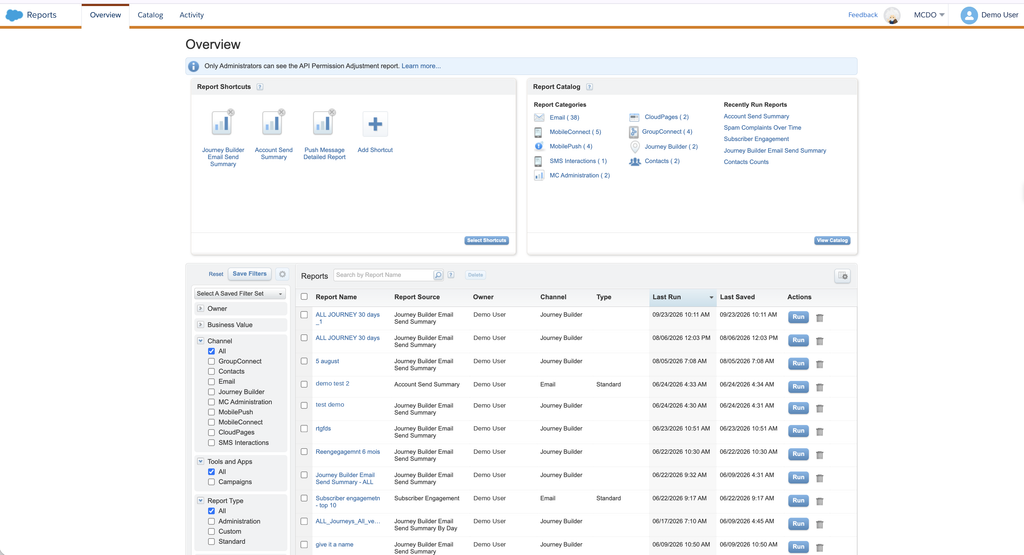
This screen has five areas:
| Area | What it is for |
|---|---|
| New Reports | The reports most recently added by Salesforce |
| Report Shortcuts | Shortcuts to the reports you use often (Add Shortcut, Select Shortcuts) |
| Report Catalog | The complete, searchable list of reports, with a description of each (View Catalog) |
| Saved Reports Menu | Filters to find your saved reports (owner, channel, business value…) |
| Saved Reports Grid | All your saved reports: click the name to see the latest version, or Run to generate a new one |
An Activity tab completes the picture: it lists the reports run today, scheduled reports and your run history. It is the first place to look when a scheduled report did not arrive.
The Catalog tab lists every available report, around sixty on a demo account, with its description and a Create button. The left-hand column lets you filter by business value (acquisition, engagement, retention, deliverability, ROI), by channel, by report type or by chart type.
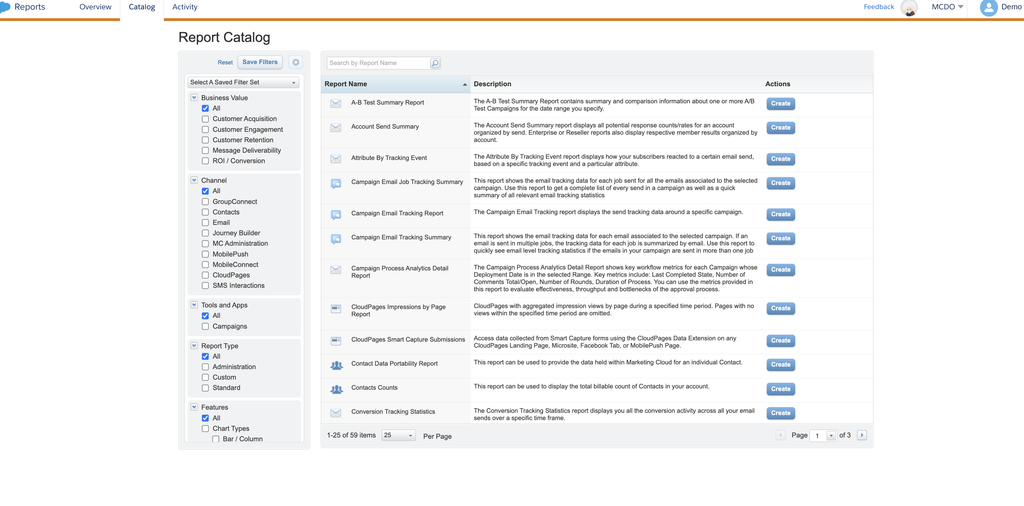
Tip: Email Studio reports are also available directly in Email Studio, in the left-hand tree of the Tracking tab (My Reports section). Handy for moving from analyzing a send to running a report without switching apps.
The catalog: which report for which question?
The catalog contains several dozen reports, split into four families: Email Studio (the largest), Journey Builder, Mobile Studio (SMS, push, LINE, chat) and administration and contact reports (Email Studio Reports). Rather than going through all of them, here are the ones that answer the questions people ask most often.
If you only remember two: Account Send Summary for Email Studio sends and Journey Builder Email Send Summary for emails sent by journeys. They are the most commonly used reports, and the ones most often scheduled for weekly or monthly follow-up.
Email Studio reports
| Your question | The report to run |
|---|---|
| “Which emails did we send over the period, and with what results?” | Account Send Summary: all response metrics for the account, send by send |
| “A quick summary of our latest sends?” | Recent Email Sending Summary |
| “Is our performance improving over time?” | Email Performance Over Time |
| “Gmail, Outlook, Yahoo: who opens, who blocks?” | Email Performance by Domain for one send, Email Performance for All Domains for an overall view |
| “Which list performs best?” | Email Performance by List and List Performance Over Time, which gives statistics for all sends to a list over a period |
| “Is our list growing?” | List Size Over Time |
| “Which domains and statuses are in this list?” | List Demographics: status, subscription method and domains of a list’s subscribers |
| “How does this customer engage with our emails?” | Subscriber Engagement and Subscriber Most Recent Activity |
| “Who did not receive the email, and why?” | Subscribers Not Sent To |
| “Are our spam complaints increasing?” | Spam Complaints Over Time |
| “Mobile or desktop?” | Single Email Performance by Device |
| “Which version of my A/B test won?” | A/B Test Summary: summary and comparison of one or more A/B tests over a period |
| “How are my transactional emails doing?” | Triggered Sends Tracking |
Journey Builder reports
Two reports cover emails sent by journeys: Journey Builder Email Send Summary for a summary, and Journey Builder Email Sends by Day to follow volumes day by day.
Mobile Studio reports
For SMS and push, the most used reports are SMS Message Summary, SMS Link Clicks and Push Message Summary (Mobile Studio Reports).
Administration reports
Email Sends by User shows who sends what in the account. The Contacts Counts report (Contacts category) shows your number of billable contacts: its Total Distinct Contacts Count is the figure used for your contract, not the number in Contact Builder (FAQ: Contact Counts and Management). The count is updated weekly, with a month-end snapshot (Contacts Count Report): run it from the parent account, ideally on Sunday or Monday (Trailhead).
Running, saving and scheduling a report
1. Run a report
The Salesforce documentation sums up the process in four steps: open Analytics Builder > Reports, choose a standard report, configure it, then export or share it (Standard Reports). In practice:
- In the Report Catalog area, click View Catalog.
- Search for the report you need, for example Account Send Summary, then click Create.
- Fill in the requested parameters: usually a date range, sometimes a send, a list or a journey.
- Click Submit: the result is displayed on screen.
For Account Send Summary, for example, the Create Report window asks for five parameters: the date range, Exclude Single Sends, Exclude Jobs Where Tracking Is Suppressed, the time zone and the Culture Code, which sets the report’s regional format.
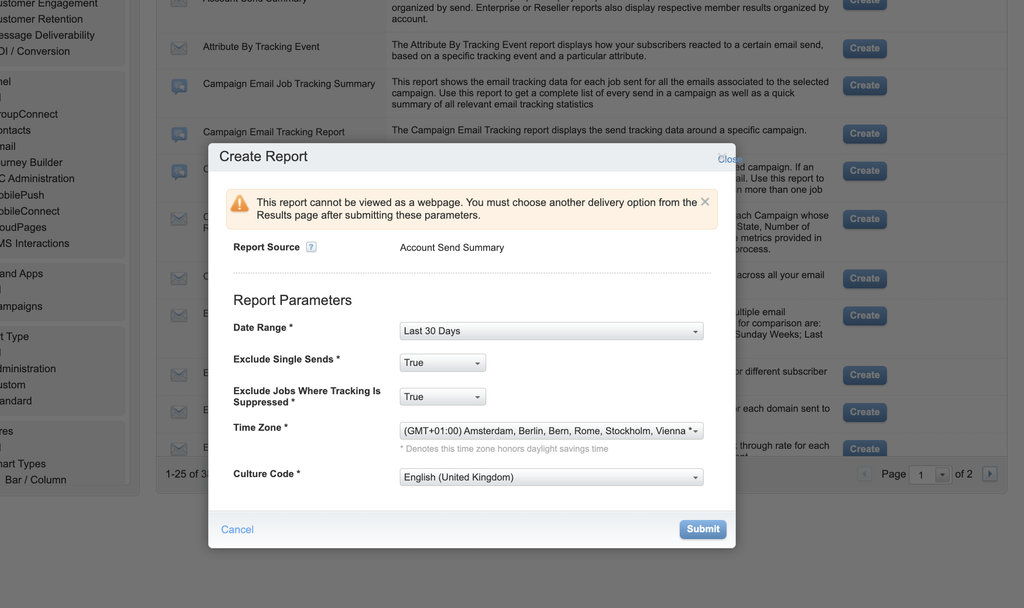
Some reports, including Account Send Summary, cannot be displayed as a web page. After Submit, the results screen asks you to choose another delivery option: email, FTP, or save and schedule. The icons at the top right let you email the report, drop it on FTP or schedule it.
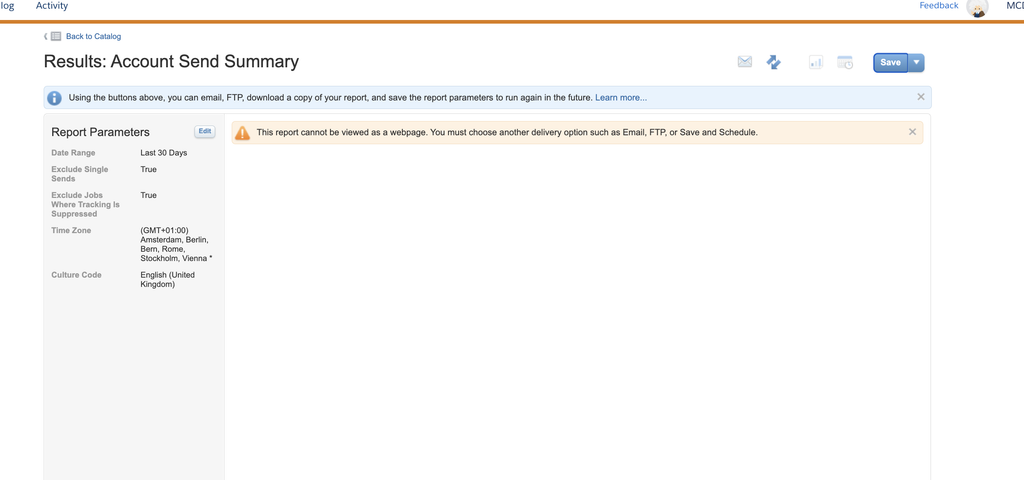
2. Save the report
On the results screen, click Save and give the report a name and a description. It then appears in the saved reports grid on the Overview screen, ready to be run again with a click on Run (Can I Save a Report?). Use explicit names such as “Account Send Summary last 7 days UK BU”: six months from now, you will thank yourself. Note that a report name cannot contain special characters: avoid commas, slashes and other symbols, or the save will be rejected.
3. Schedule automatic delivery
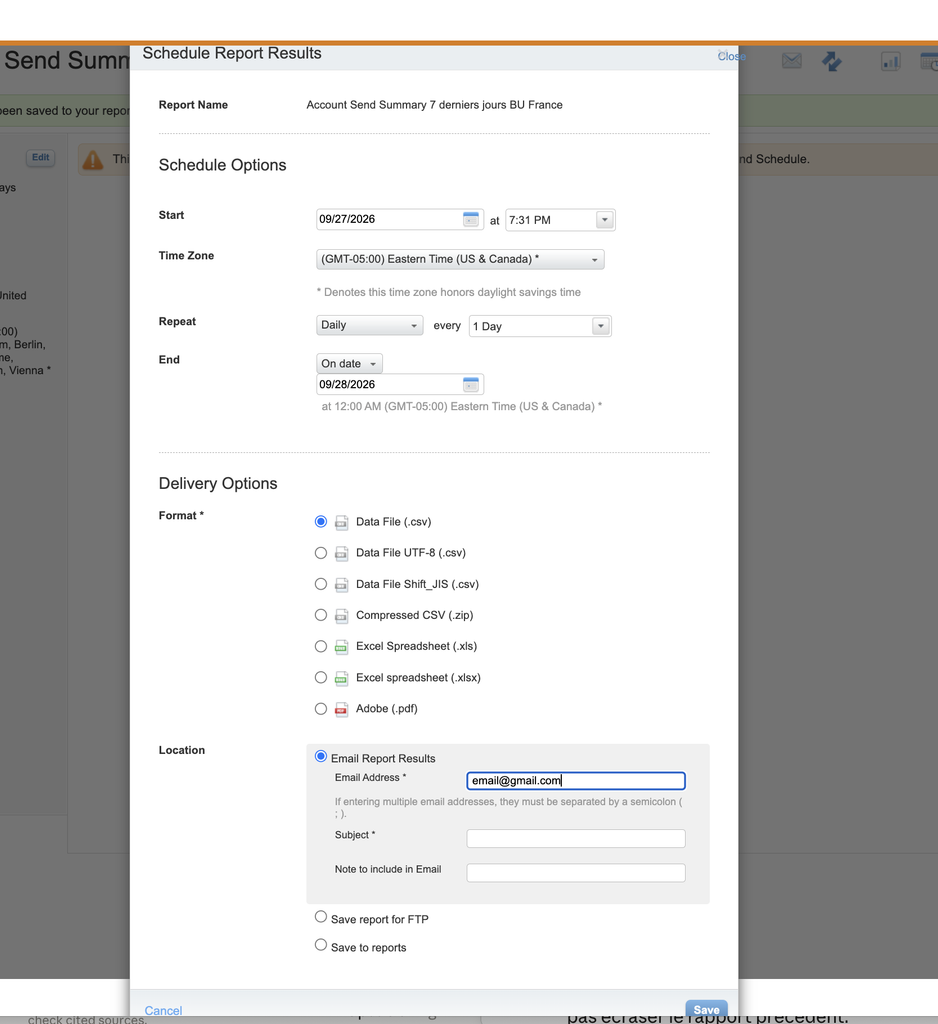
Any standard Analytics Builder report can be scheduled. Open the saved report, then click Edit in the Schedule Options section (Can I Schedule a Report?). You choose:
- the start date and time, and the time zone;
- the frequency: once, hourly, daily, weekly…;
- an end date, which must not be later than the year 2077.
In the Schedule Report Results window, the scheduling options are Start (start date and time), Time Zone, Repeat (for example Daily, every 1 Day) and End (an end date).
4. Choose the format and delivery method
The Delivery Options section has two parts. First the format, with seven choices: Data File (.csv), Data File UTF-8 (.csv), Data File Shift_JIS (.csv), Compressed CSV (.zip), Excel Spreadsheet (.xls), Excel spreadsheet (.xlsx) and Adobe (.pdf). For data with accented characters, prefer UTF-8 CSV; for a large file, compressed CSV.
Then the destination (Location), with three options:
- Email Report Results: one or more email addresses separated by a semicolon, with a required subject and an optional note.
- Save report for FTP: drops the file on the Marketing Cloud FTP server. For a recurring drop, include the date in the file name so you do not overwrite the previous report.
- Save to reports: the result is kept in your saved reports.
Choosing between email and FTP is not just a matter of preference: beyond a certain size, email fails. More on that below.
5. What does a report look like? Download our examples
To get an idea before running your own reports, here are five example CSV files built from real exports. Names, IDs and numbers are fictitious, but the columns are exactly those produced by Marketing Cloud Engagement.
- One row per send: JobID, EmailName, SendStartTime, Sends, ImplicitDeliveries, detailed bounces (Hard, Soft, Block, Technical, Unknown), UniqueOpens, OpenRate, UniqueClicks, ClickRate, complaints and unsubscribes. Rates are calculated on delivered emails.
- The compact version: for each send, the date, emails sent, delivered and undeliverable, opens, clicks and unsubscribes. Ideal for plotting a trend line in Excel.
- One row per journey email, with the journey name and version, the activity, the last modified date, the email subject and all cumulative metrics, including mobile opens and conversions.
- Two blocks: metrics per journey and per day, then details per email activity and per day.
- One row per snapshot (every Saturday and every month end), with the Total Distinct Contacts Count, then a breakdown by channel (emails, push devices, mobile numbers) and by source (contacts and leads synced from Salesforce).
Pitfalls to know (and how to avoid them)
A report over 6 MB will not arrive by email
This is the number one cause of scheduled reports that “never show up”. A report must not exceed 6 MB: beyond that, email delivery fails and you need to use Enhanced FTP (Standard Reports). If a scheduled report disappears without explanation, check its size in the Activity tab first.
Deactivating a user deletes their reports
When a user who created reports is deactivated, their reports are deleted (Standard Reports), schedules included. Before a colleague leaves, take stock of their reports and recreate the important ones under another user, ideally a shared team account.
Access rights
Standard Marketing Cloud Engagement roles give access to reports. With a custom role, you may need to enable the View permission for Reporting in the Analytics application (Email Activity Tracking in Journey Builder, Who Can Access Reports?).
Tips from the field
These points come up again and again with customers:
- Short date ranges = fast reports. A report on a year of data can run for a very long time, or even time out. Start small, then widen.
- Midnight matters. To include the whole last day of a custom range, set the following day as the end date. Example: to cover May 1 to May 17 inclusive, enter May 18.
- Several recipients? Separate email addresses with a semicolon.
- Single-send reports do not schedule well. A report such as Email Performance by Domain is about one specific email: it makes no sense as a recurring delivery. For automated follow-up, prefer period-based reports (Account Send Summary, Email Performance Over Time).
- Some reports cannot be displayed on screen. This is the case for Account Send Summary: you have to email it, drop it on FTP, or save and schedule it.
Deleted subscribers no longer appear
Since May 25, 2018, reports that list individual subscribers no longer include those deleted with the legacy Email Studio delete function (Standard Reports). A gap between an old exported report and the same report run today may come from there.
Limits, Discover, Hyperforce: what you need to know in 2026
Fixed reports
Standard reports are ready to use, but not customizable: you choose parameters (dates, send, list), not the columns or calculations. If your question falls outside what Salesforce planned, you will need another tool.
Discover Reports no longer exist
You will still find tutorials online about Discover Reports, configurable reports that also lived in Analytics Builder. They were retired on April 1, 2022 and can no longer be used (Salesforce Ben). Their replacement is Intelligence Reports for Engagement, formerly Datorama Reports. If an article talks about Discover, it predates 2022.
Two years of history at most
Analytics Builder reports follow the same retention policy as Tracking: since June 16, 2025, engagement data older than 730 days is no longer accessible in them (Marketing Cloud Engagement, Retention Policy Update). An annual report comparing 2023 with 2026 is therefore impossible unless you exported the data along the way.
Is your account on Hyperforce?
The Salesforce documentation now states that, for Hyperforce-supported reports, you should use Intelligence Reports (Standard Reports). If your account has moved or will move to Hyperforce, check with your Salesforce contact which standard reports remain available, and plan the switch for your critical scheduled reports.
Which tool should you use next?
| Your need | The right tool |
|---|---|
| Analyze a specific send and see who clicked | Email Studio Tracking |
| Visual dashboards, pivot tables, two-year trends | Intelligence Reports for Engagement [to link] (documentation) |
| A custom report at subscriber level, combined with your own data | Data Views and SQL [to link] (Data Views) |
| Send raw data to a data warehouse or BI tool | Tracking Extract [to link] (Tracking Extract) |
| See tracking in Sales Cloud or Service Cloud | Marketing Cloud Connect reports (Standard Marketing Cloud Connect Reports) |
FAQ: Marketing Cloud Engagement standard reports
Where are reports in Marketing Cloud Engagement?
In Analytics Builder > Reports. The Overview screen gives access to the catalog, your shortcuts and your saved reports. Email Studio reports are also available from the Tracking tab in Email Studio.
Can I schedule a report in Marketing Cloud?
Yes, any standard Analytics Builder report can be scheduled: open the saved report, click Edit in Schedule Options, then choose the start date, time zone, frequency and end date.
Why didn’t my scheduled report arrive by email?
Most often, the file exceeds 6 MB. In that case, choose delivery to Enhanced FTP or shorten the date range. Also check the Activity tab, and that the report’s creator has not been deactivated.
Which report shows all sends for the month?
Account Send Summary: it displays all response metrics for the account, organized send by send, over the chosen period.
How do I find the number of billable contacts in Marketing Cloud?
Run the Contacts Counts report from the parent account. The figure used for billing is the Total Distinct Contacts Count, not the number shown in Contact Builder.
Are Discover Reports still available?
No, they were retired on April 1, 2022. For customizable dashboards and analyses, use Intelligence Reports for Engagement.
How far back can a standard report go?
Engagement data stays accessible for 730 days in Analytics Builder reports. For long ranges, keep periods reasonable so the report generates in a decent time.
Sources: Salesforce documentation
All the information in this article was checked against the Salesforce documentation in September 2026.
- Standard Reports
- Get Started with Reports
- Create a Standard Report in Analytics Builder
- Email Studio Reports in Analytics Builder
- Journey Builder Reports
- Mobile Studio Reports
- Contacts Count Report in Analytics Builder
- Can I Schedule a Report?
- Who Can Access Reports?
- Marketing Cloud Engagement, Retention Policy Update
- Intelligence Reports for Engagement
- Standard Marketing Cloud Connect Reports
- Discover Reports retirement: Salesforce Ben
Commentaires
Aucun commentaire pour l'instant. Une question, une astuce à partager ? Lancez la discussion.
Pour continuer
Connect the Marketing Cloud Engagement MCP Server to Claude: a Step-by-Step Guide Nouveau
Engagement, Pour débuter
Une question sur ce guide ?
contact@erwandupas.com