Email Studio Tracking: the complete guide to reading and using your send statistics
You have just sent a campaign from Marketing Cloud Engagement (formerly known as SFMC) and you want to know how many people opened it, who clicked, and why some emails never arrived. Before building a report or writing a single SQL query, the right reflex is to open Tracking in Email Studio.
Salesforce describes Tracking as an aggregated collection of data that shows opens, clicks, undeliverable messages and other metrics online, including how many emails were forwarded and how many new subscribers those forwards generated (Tracking in Email Studio). You can also create a subscriber list from tracking data.
Why start with Tracking? Because it is immediate: the numbers are available as soon as the send completes, with nothing to configure. You get an overview of the campaign on a single screen. And in two clicks, you can retrieve the subscribers who opened, clicked, bounced or ignored the email, to export them or reuse them.
In this guide, you will learn how to find the tracking for a send, read each block of the screen, see who clicked on which link, export the data and, above all, interpret the numbers correctly. You will also see its limits, and when to switch to another reporting tool.
Where to find Tracking in Email Studio
To view the statistics for a send, open Email Studio > Email, hover over the Tracking tab, then click Sends. The list of sends appears in the center and the tracking folder tree on the left. Click a send name to open its details (View Tracking Results for an Email Send).
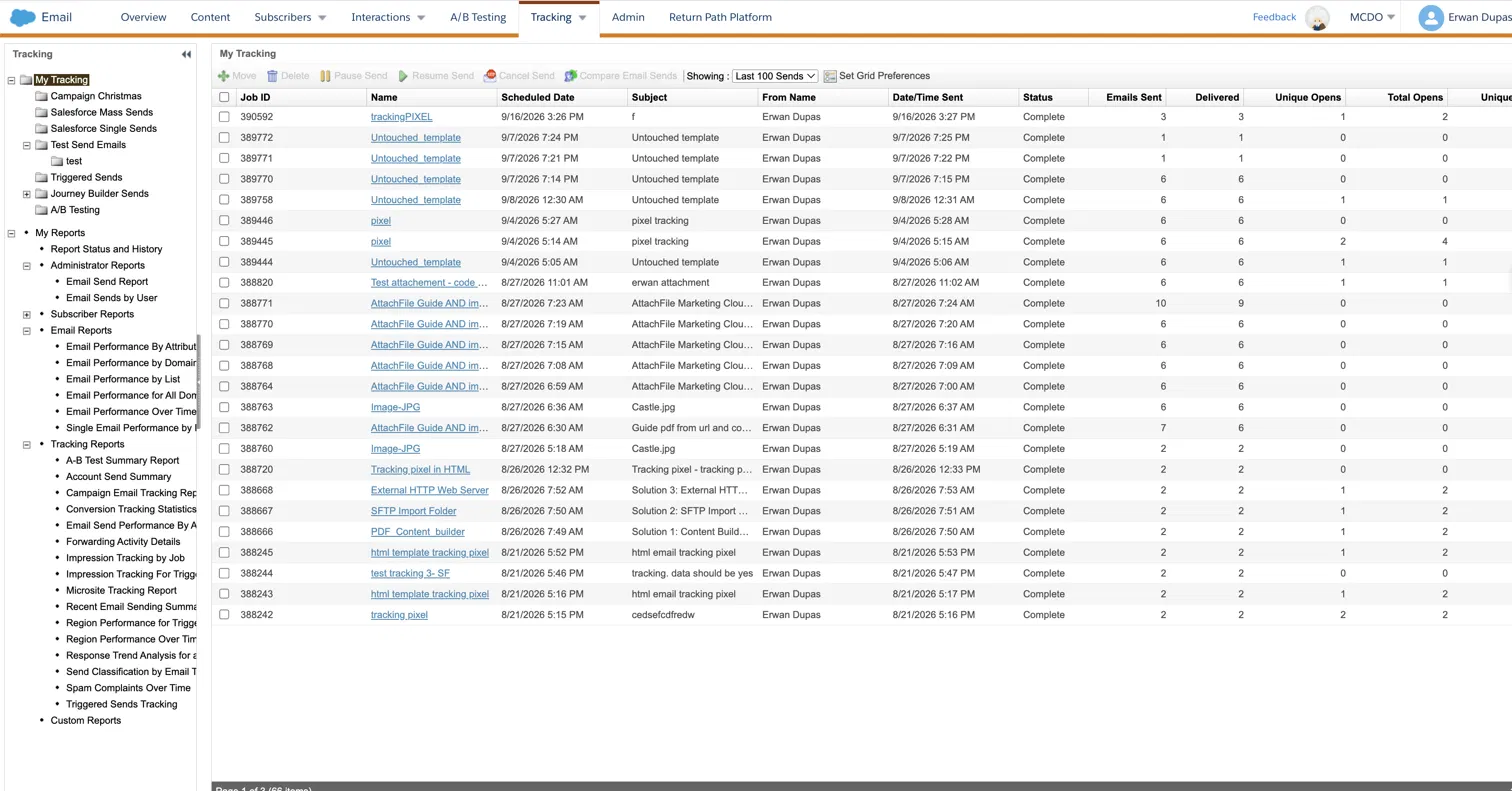
By default, the My Tracking grid shows the last 100 sends, each with its Job ID, name, subject, send date, status, number of emails sent and delivered, and unique and total opens. Set Grid Preferences lets you choose which columns to display, and Compare Email Sends compares several sends side by side. The folder tree on the left includes system folders such as Triggered Sends, Journey Builder Sends, Test Send Emails and A/B Testing, as well as shortcuts to Email Studio reports.
There are other entry points depending on how the email was sent:
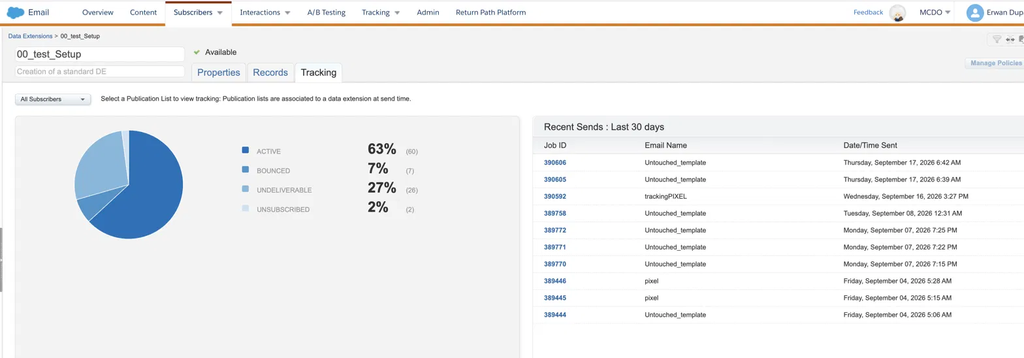
- Send to a data extension: in Subscribers > Data Extensions, open the data extension and then its Tracking tab. You will see the breakdown of subscriber statuses (Active, Bounced, Undeliverable, Unsubscribed) and the sends from the last 30 days (View Tracking for Data Extensions).
- Email sent by a journey: click the email activity on the canvas of a Sent, Running or Stopped journey to see its metrics. Detailed tracking remains available in Email Studio, in the Journey Builder Sends folder (Email Activity Tracking in Journey Builder).
- Triggered sends: they have their own tracking view in Email Studio (Triggered Sends Tracking).
Organize your sends into folders from day one
The tracking folder is chosen at the Configure Delivery step of the send flow (Configure Delivery). Get into the habit of filing sends by type: tests, newsletters, triggered sends, A/B tests. When you look for a send six months later, you will save a lot of time. If a send landed in the wrong place, you can move its tracking data (Move Tracking Data).
Reading the tracking screen of a send, block by block
The Overview tab is a dashboard that gathers the tracking data of a send, organized into six blocks (Tracking Overview Tab).
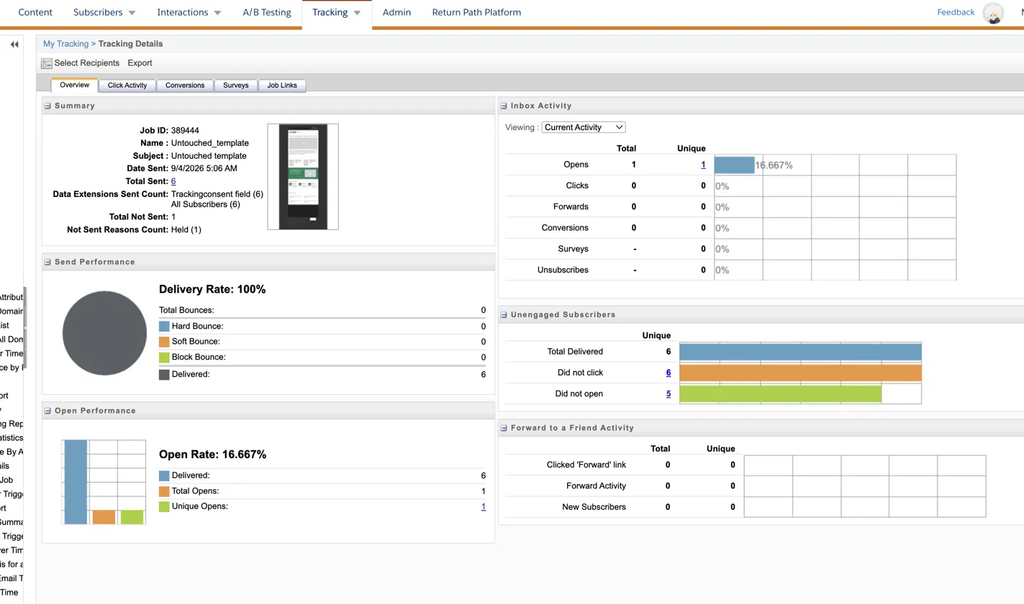
At the top of the screen, the Overview, Click Activity, Conversions, Surveys and Job Links tabs give access to the different views of the send. Underlined numbers are clickable: they open the list of subscribers concerned.
| Block | What it shows | The question it answers |
|---|---|---|
| Summary | Total sent, targeted lists or data extensions, subscribers not sent and why | “Who did the email actually go to?” |
| Send Performance | Bounce types and their counts | “How many emails were delivered?” |
| Open Performance | The open rate, with total and unique opens | “Did the subject line make people open?” |
| Inbox Activity | Opens, clicks, forwards, conversions, surveys and unsubscribes, total and unique | “Did the content get a reaction?” |
| Unengaged Subscribers | Subscribers who neither opened nor clicked | “Who should I follow up with?” |
| Forward to a Friend Activity | Subscribers who forwarded the email and the new sign-ups it generated | “Did the email get shared?” |
The Summary block: understanding why some subscribers received nothing
This is the most underrated block. It shows the Total Sent, but also the Total Not Sent with a breakdown of reasons. When someone asks why a 10,000-row data extension only produced 9,400 sends, the answer is almost always here:
- Duplicate: duplicate email addresses removed before sending.
- Unsubscribe Count: subscribers unsubscribed at send time, including account-level and global opt-outs.
- Held Count: addresses in Held status, usually after repeated hard bounces.
- List Detective Count: addresses blocked by List Detective, the tool that filters out addresses and domains known to cause deliverability problems (List Detective).
- Excluded Count and Suppression List: subscribers removed by an exclusion rule, a suppression list, auto-suppression or a domain exclusion.
- Error Count and Email Address Not Found: errors while building the email, or an empty email field.
Filtering by list with Select Recipients
If the send targeted several lists or data extensions, the Select Recipients button lets you keep only some of them. The numbers on the screen are then recalculated for that part of the audience. It is a handy way to compare two segments of the same campaign.
Analyzing clicks with the Click Activity tab
To find out which links worked, open the send in Tracking and then the Click Activity tab. Two views are available, and each can be exported: to PDF from the email view, to Excel from the link view (Tracking Click Activity Tab).
Email Overlay View: your email’s heat map
This view displays your email with the percentage of subscribers who clicked each link. It is ideal when presenting results to a creative team: you can immediately see whether the main button did its job or whether readers preferred a secondary link.
Link View: knowing who clicked on which link
This view lists every link with its total clicks, unique clicks and click-through rate. The detail that changes everything: the unique clicks number is clickable and displays the list of subscribers who clicked that link. It is the direct answer to “who clicked on the offer?”.
How Salesforce calculates open and click rates
Be careful with percentages, they do not all measure the same thing:
| Metric | Calculation |
|---|---|
| Open Rate | Unique opens divided by the number of emails delivered. Example: 1 unique open for 6 delivered emails gives 16.667% |
| CTR (Click-Through Rate) | Unique clicks on the link divided by the number of emails delivered |
| Total Clicks (%) | Total clicks on the link divided by total clicks on all links |
| Unique Clicks (%) | Unique clicks on the link divided by unique clicks on all links |
The CTR is therefore based on delivered emails, not on emails sent or on opens. If you compare your numbers with another tool that calculates a click rate based on opens (often called CTOR), a difference is normal.
Taking action: creating a list from tracking data
Tracking is not just a dashboard: every underlined number opens the list of subscribers concerned, which you can then copy into a list. The Salesforce documentation describes the procedure in five steps (Create a List from Tracking):
- Open the Tracking tab and navigate to the send’s folder.
- Select the email.
- Click the underlined number you are interested in (unique clicks, non-openers, bounces…).
- Click Copy All.
- Choose New List (name and description) or Existing List, then click Copy.
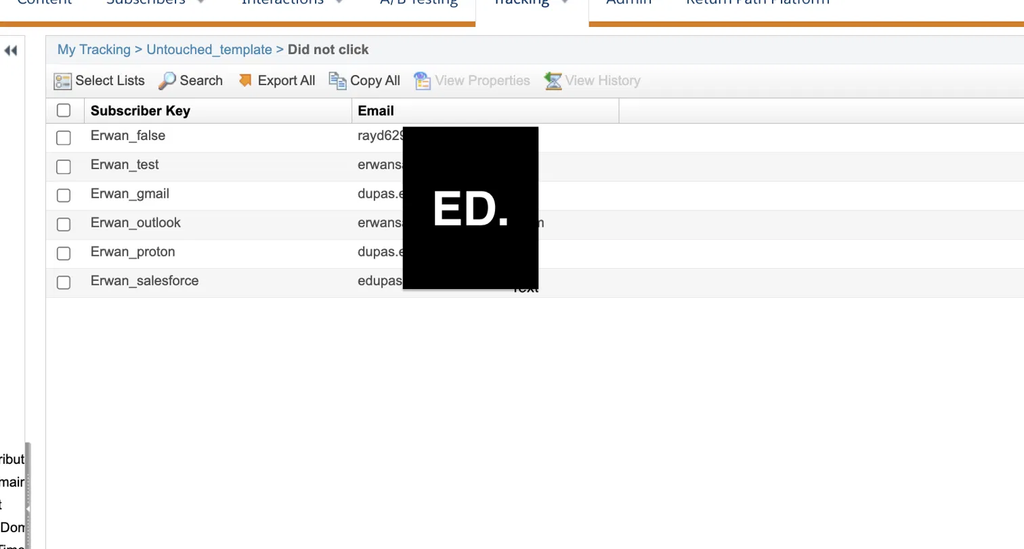
From this screen, the toolbar also offers Search to find a subscriber and Export All to download the whole list directly.
The same subscriber list can also be exported to an Excel file. Note that the result is a list, not a data extension: if your account mostly works with data extensions, Data Views [to link] will be better suited for recurring targeting.
What is the list used for afterwards?
A list created from Tracking is a snapshot of the audience at a given moment: it does not update itself. It is mainly used to act quickly on a campaign that has just gone out:
- Send a follow-up: the list becomes the target audience of a new send from Email Studio, for example a second email to non-openers with a different subject line (Send to a List in Email Studio).
- Exclude subscribers from a future send: for example, not sending an offer again to those who already clicked (Exclusion Lists in Marketing Cloud Engagement).
- Share a segment: export it for a sales team or an external tool.
- Keep a record: preserve who engaged with a key campaign, beyond the tracking retention period.
One limit to know: Journey Builder starts journeys from data extensions, not lists. To bring these subscribers into a journey, you need to go through a data extension, for example with a SQL query on Data Views [to link].
Four practical use cases
| Marketing need | What you do in Tracking |
|---|---|
| Follow up with subscribers who did not open | Unengaged Subscribers block, “Did not open” number, then Copy All to a new list |
| Retarget those who clicked on a specific offer | Click Activity, Link View, unique clicks on the link, then Copy All |
| Investigate a deliverability issue | Send Performance block, then export the bounce data (Export Bounce Data) |
| Use the data in another tool | Export subscriber data to Excel (Export Subscriber Data from Tracking to an Excel File) |
To automate this kind of follow-up instead of redoing it by hand for every campaign, Email Studio also offers Measures, with a documented scenario for emailing subscribers who clicked a link (Scenario: Send Email to Subscribers Who Clicked a Link).
Exporting the tracking data of a send
To get the statistics of a send out of Marketing Cloud, Salesforce documents this path (Marketing Cloud Engagement, Retention Policy Update):
- In Email Studio, select the email in the Sends panel.
- Click Export.
- Choose the export type, the report modules to include and the delivery method.
- Name the file, then click Export.
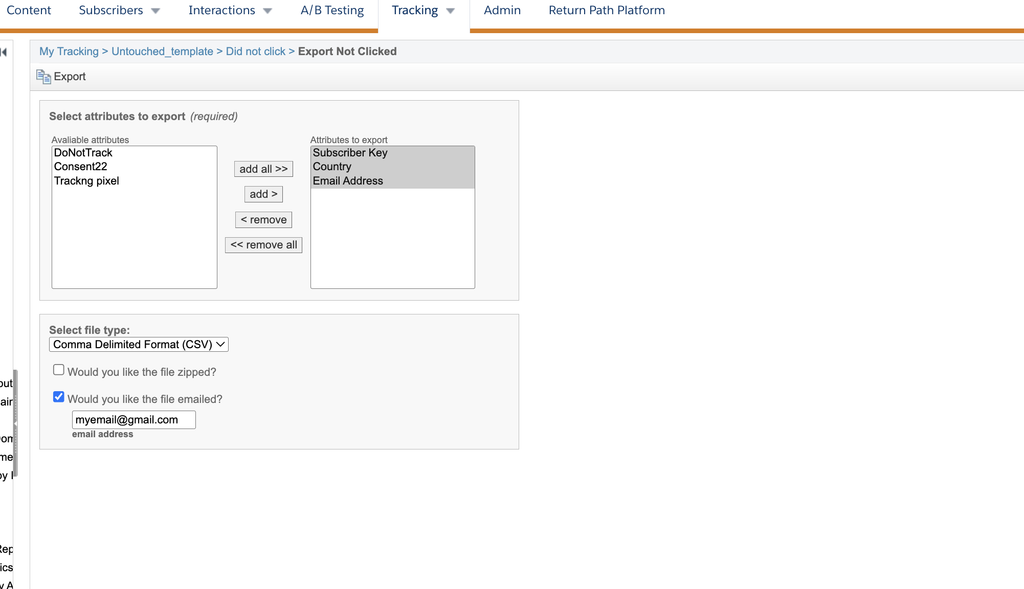
Two other export options are available from Tracking: the Click Activity tab (PDF from the email view, Excel from the link view) and creating a file from a tracking tab (Create a File from a Tracking Tab).
These exports are perfect for a one-off send. As soon as you need to regularly export the tracking of all your sends to a data warehouse or a BI tool, switch to Tracking Extract [to link], which can be automated in Automation Studio.
Reading the numbers correctly: pitfalls to know
Tracking numbers are reliable, but they measure technical events, not human intentions. Here are the situations that raise the most questions.
“Delivered” does not mean “landed in the inbox”
An email is counted as delivered as long as no bounce was received for it. An email filtered to spam by the mailbox provider therefore still counts as “delivered” in Tracking. The delivery rate measures acceptance by the receiving server, not inbox placement.
More clicks than opens?
It can happen, and it is not a bug. Opens are detected through an invisible image (the tracking pixel). If the reader blocks images, the open is not recorded, but the click is. If you use pasted HTML emails, also check that open tracking is enabled on the email.
Apple Mail Privacy Protection inflates opens
Since iOS 15, Apple Mail can preload email content for users who enabled Mail Privacy Protection. The pixel then fires without the person actually reading the message, and the open is counted. Salesforce has adapted its Einstein features to this change (Email Client Privacy Metrics in Marketing Cloud Engagement Einstein). In practice, rely on clicks rather than opens to judge engagement: Salesforce points out that click-through rate measurement is not affected by these protections (Apple Privacy Changes Will Force Marketers to Innovate).
Bots, scanners and forwarded emails
Email Studio records every open and click event, because nothing reliably distinguishes a human from an automated program (Clicks and Opens Behavior). Two consequences:
- Some corporate security filters “click” links to scan them, which can create very fast clicks right after the send.
- If a subscriber forwards the email and the recipient opens it or clicks, those actions are attributed to the original subscriber.
That is why unique metrics are more meaningful: they limit each subscriber to a single unique open and a single unique click.
Subscribers with Do Not Track
If your account uses the Do Not Track feature, tracking IDs are not added to the emails of subscribers who refused tracking, so their opens and clicks are unknown (Do Not Track Email Opens and Clicks). A lower open rate after enabling Do Not Track does not necessarily mean your audience is less interested.
Tracking limits, and which tool to use next
Retention limited to 730 days
Since June 16, 2025, subscriber engagement data is retained and accessible for 730 days. Beyond that, it is no longer visible in Email Studio Tracking, in Analytics Builder reports or through the SOAP API. For contracts dated April 10, 2024 or later, older data is deleted; for earlier contracts, a raw copy is kept but remains inaccessible, and is deleted at renewal (Marketing Cloud Engagement, Retention Policy Update).
Good to know: the general Tracking help page still states that data is stored for the life of the contract (Tracking in Email Studio). The retention policy article, which is more recent and more precise, is the reference. If you need a longer history, export your data out of Marketing Cloud on a regular basis.
One send at a time
Tracking is designed to analyze one send at a time. As soon as you want to compare dozens of campaigns, follow a trend over several months or combine engagement with your own data, it reaches its limits. Bounce details are also fairly basic.
Which tool for which need?
| Your need | The right tool |
|---|---|
| Analyze a specific send, see who clicked | Email Studio Tracking (this article) |
| Compare sends over a period, schedule a recurring report | Analytics Builder standard reports [to link] |
| Build dashboards and follow trends over 2 years | Intelligence Reports for Engagement [to link] |
| Get raw details (SMTP bounce reason, clicks per subscriber) in a data extension | Data Views and SQL [to link], over a rolling 6 months (Data Views) |
| Automatically export tracking to an external tool | Tracking Extract [to link] (Tracking Extract) |
| Track the performance of a multi-step journey | Journey Builder reporting [to link] |
FAQ: Email Studio Tracking
How long is tracking data kept in Marketing Cloud Engagement?
Since June 16, 2025, subscriber engagement data is accessible for 730 days in Email Studio Tracking and Analytics Builder reports. Beyond that, you need to have exported it.
How can I see who clicked on a specific link?
Open the send in Tracking, then the Click Activity tab in Link View. Click the unique clicks number for the link to display the list of subscribers who clicked.
How is the click rate calculated in Email Studio?
The CTR is the number of unique clicks divided by the number of emails delivered. It is not based on sends or on opens.
Why is my click rate higher than my open rate?
Opens depend on an invisible image loading. If the recipient blocks images, the open is not recorded while the click is.
Why did some subscribers in my data extension not receive the email?
Check the Summary block of the Overview tab: it breaks down subscribers not sent by reason (duplicates, unsubscribed, Held status, List Detective, suppression lists, empty address).
What can I do with a list created from Tracking?
Send a follow-up email from Email Studio, use it as an exclusion list for a future send, or export it. To use these subscribers in Journey Builder, you first need to move them into a data extension.
Can I export the tracking data of an email?
Yes. In Email Studio, select the send, click Export, then choose the export type, the modules and the delivery method. For regular, automated exports, use a Tracking Extract in Automation Studio instead.
Sources: Salesforce documentation
All the information in this article was checked against the Salesforce documentation in September 2026.
- Tracking in Email Studio
- Tracking Overview Tab
- Tracking Click Activity Tab
- Create a List from Tracking
- Send to a List in Email Studio
- Exclusion Lists in Marketing Cloud Engagement
- Export Subscriber Data from Tracking to an Excel File
- Export Bounce Data
- Clicks and Opens Behavior
- Do Not Track Email Opens and Clicks
- Email Activity Tracking in Journey Builder
- Marketing Cloud Engagement, Retention Policy Update
- Data Views
Commentaires
Aucun commentaire pour l'instant. Une question, une astuce à partager ? Lancez la discussion.
Pour continuer
Connect the Marketing Cloud Engagement MCP Server to Claude: a Step-by-Step Guide Nouveau
Engagement, Pour débuter
Une question sur ce guide ?
contact@erwandupas.com