Connect the Marketing Cloud Engagement MCP Server to Claude: a Step-by-Step Guide
In about fifteen minutes, you can connect your Marketing Cloud Engagement (MCE) account to Claude and ask it to create an email, query a Data Extension or analyse your journeys, right from a conversation.
Salesforce provides a hosted MCP server for MCE, but its official documentation mostly shows how to connect it with Claude Code, from the command line. This guide covers the web and desktop versions of Claude, using a custom connector.
I went through the whole process on my account. I’ll show you every screen.
The Marketing Cloud Engagement MCP server in a nutshell
The Model Context Protocol (MCP) is an open standard that lets an AI assistant use external tools. The MCE MCP server bridges Claude and the Marketing Cloud APIs: Claude understands your request, and the server runs the matching action in your account.
Three components are involved:
- The model (LLM): it interprets your request and decides which tool to call, for example Claude Opus or Sonnet.
- The client: the application where you chat with the model, here Claude on the web or the desktop app.
- The MCP server: hosted by Salesforce, it receives the call and turns it into a request to the MCE APIs. It doesn’t store your data, it only passes it along.
A few examples of what you can ask once connected:
- create an email in Content Builder from a description;
- find the journey with the most unsubscribes last week;
- write and test a SQL query based on the actual schema of your Data Extensions;
- replace an old link (a privacy policy, for instance) across all your content.
The server’s tools are grouped into 11 categories, covering most of the Marketing Cloud Engagement APIs:
| Category | What Claude can do |
|---|---|
| Automations | Create, update and run automations and SQL Query activities |
| Campaigns | Create campaigns and associate content with them |
| Contacts | Look up a contact, its subscription status and attributes, and update them |
| Content | Create and update emails, templates, SMS and Content Builder assets |
| Data Extensions | Create, read, query and update Data Extensions and their rows |
| Create transactional and triggered send definitions, monitor sends | |
| Journeys | Build, publish, pause or stop journeys |
| Push | Send a push notification to a contact |
| SMS | Create MobileConnect keywords and SMS send definitions |
| Tracking | Retrieve tracking and engagement data for an email |
| Utilities | Describe objects, list send classifications, sender profiles and time zones |
The details of each tool, including the required scopes, are in the Salesforce tool reference.
Prerequisites
Before you start, check the following:
- Admin access to Marketing Cloud Engagement, to create an Installed Package in Setup.
- A Claude account, even a free one. Custom connectors are available on the Free, Pro, Max, Team and Enterprise plans, in Claude on the web and Claude Desktop. The Free plan is limited to one custom connector.
- On Claude Team or Enterprise, an Owner. They first add the connector in Organization settings > Connectors, then each member connects to it with their own Marketing Cloud account.
- Ideally, a test account or business unit. Claude will be able to create and update real items: start in a safe environment.
Source: Get started with custom connectors using remote MCP (Claude Help Center).
Step 1: create the Installed Package in Marketing Cloud
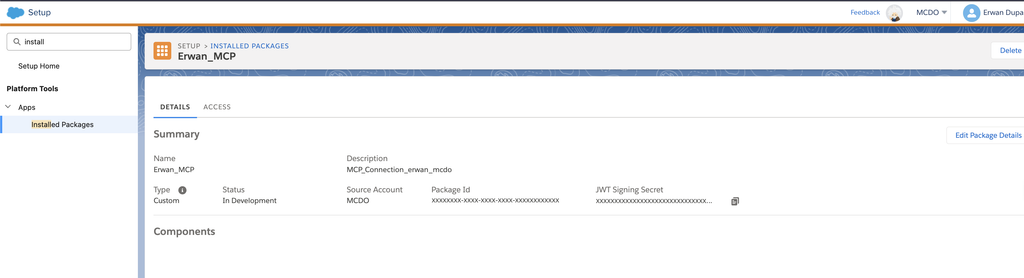
In MCE, open Setup, then Apps > Installed Packages, and click New. Give the package a clear name (for example Erwan_MCP) and a description, then save.
Step 2: add a Public App API Integration component
On the package page, click Add Component, choose API Integration, then Next.
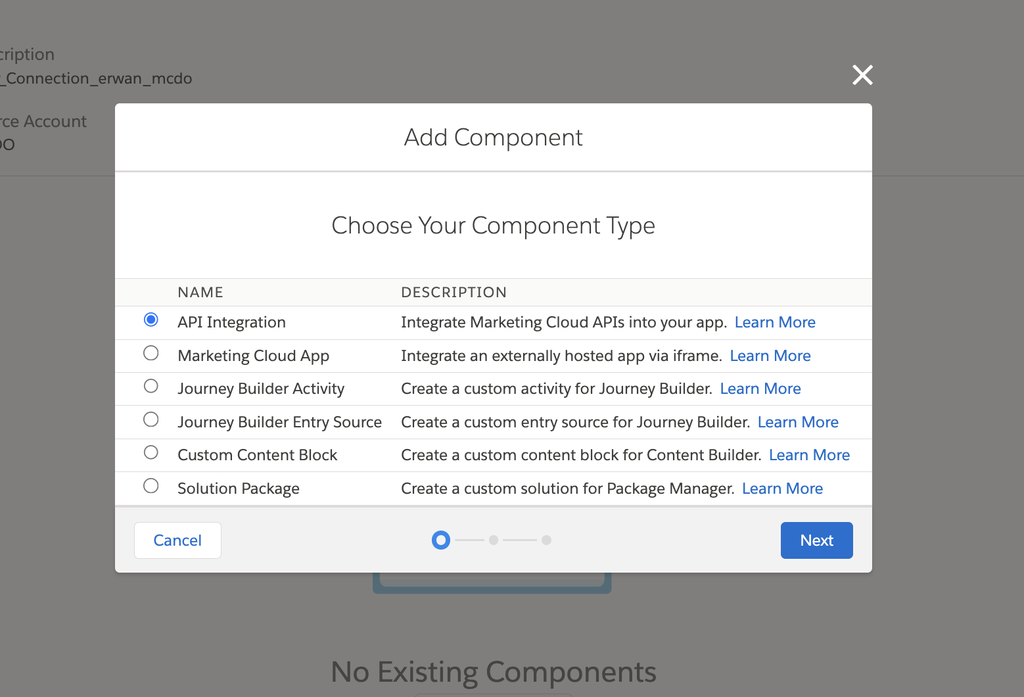
Then select the Public App integration type. This matters: the MCP server uses an OAuth flow where users sign in themselves, with no stored client secret.
In Redirect URIs, enter https://salesforce.com for now. The field is required, but you don’t know the final URL yet: you’ll replace it in step 4.
In Scope, tick the permissions Claude will need. On a demo account, you can tick everything. In production, stick to what’s strictly necessary: to create and update Data Extensions, for example, Data Extensions Read and Write are enough.
Good to know: Claude will never have more rights than you. Its effective permissions combine the package scopes with your own Marketing Cloud user permissions: if either is missing, the action is refused.
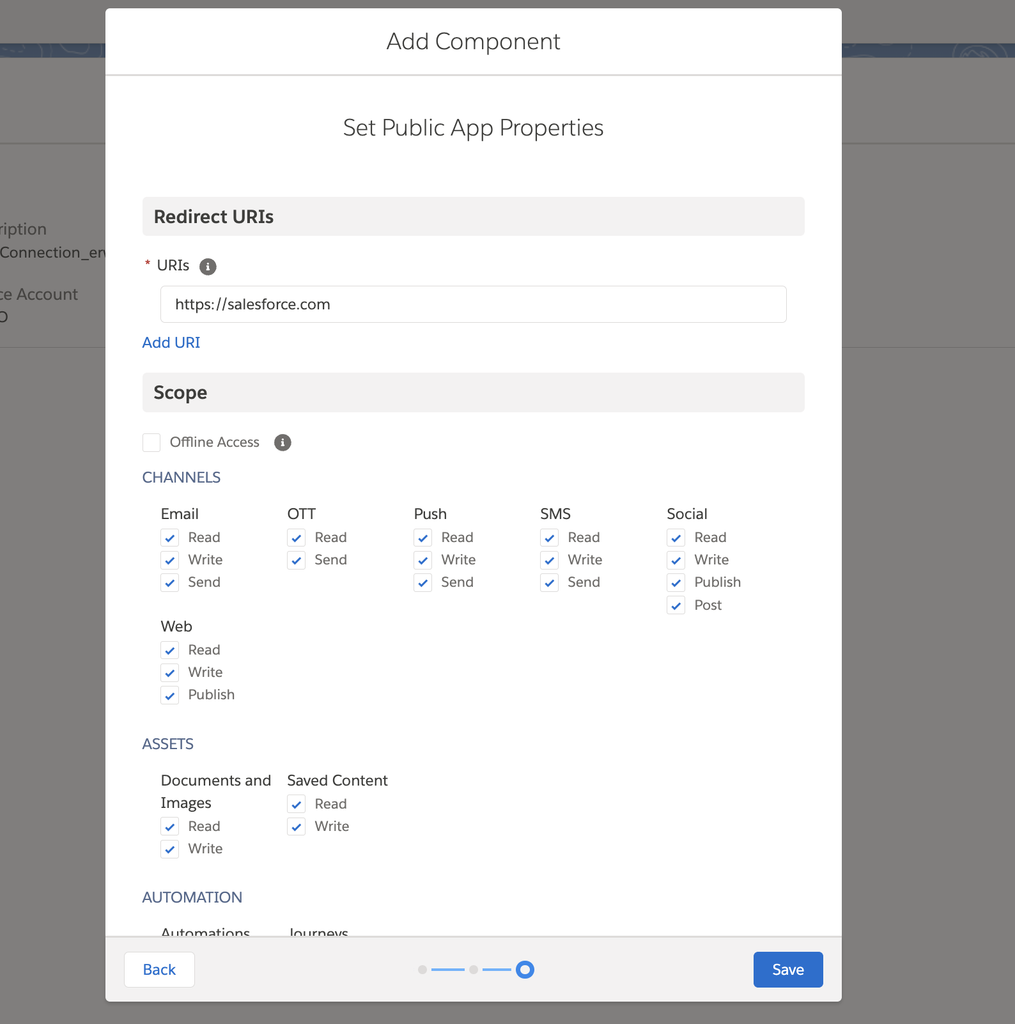
Tip: also tick Offline Access. Without it, Claude may ask you to sign in again regularly.
Step 3: get the Client ID and Tenant ID
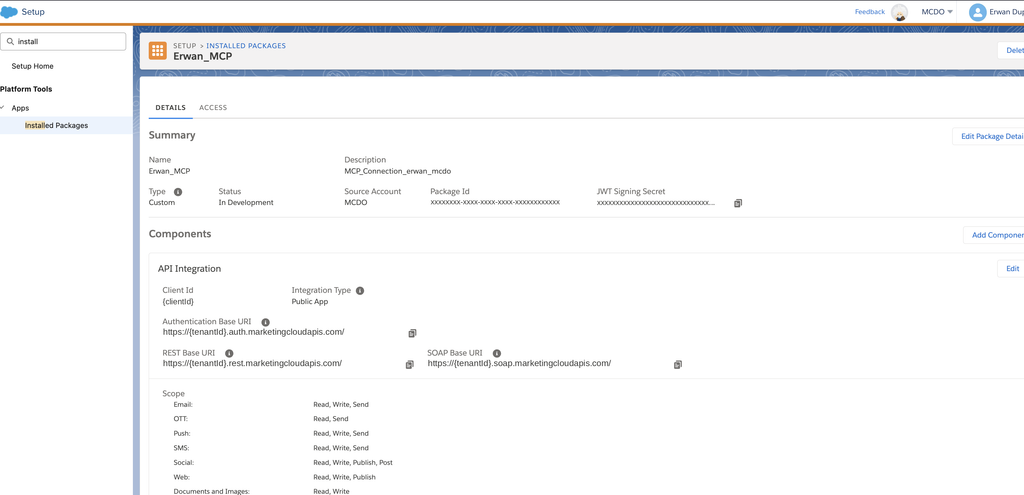
Save the component. The package page now shows two values you’ll need:
- Client Id: a 24-character string.
- Tenant ID: the subdomain of your Authentication Base URI, meaning everything before
.auth.marketingcloudapis.com. Copy all of it, including any suffix such as-1: it’s 28 characters long.
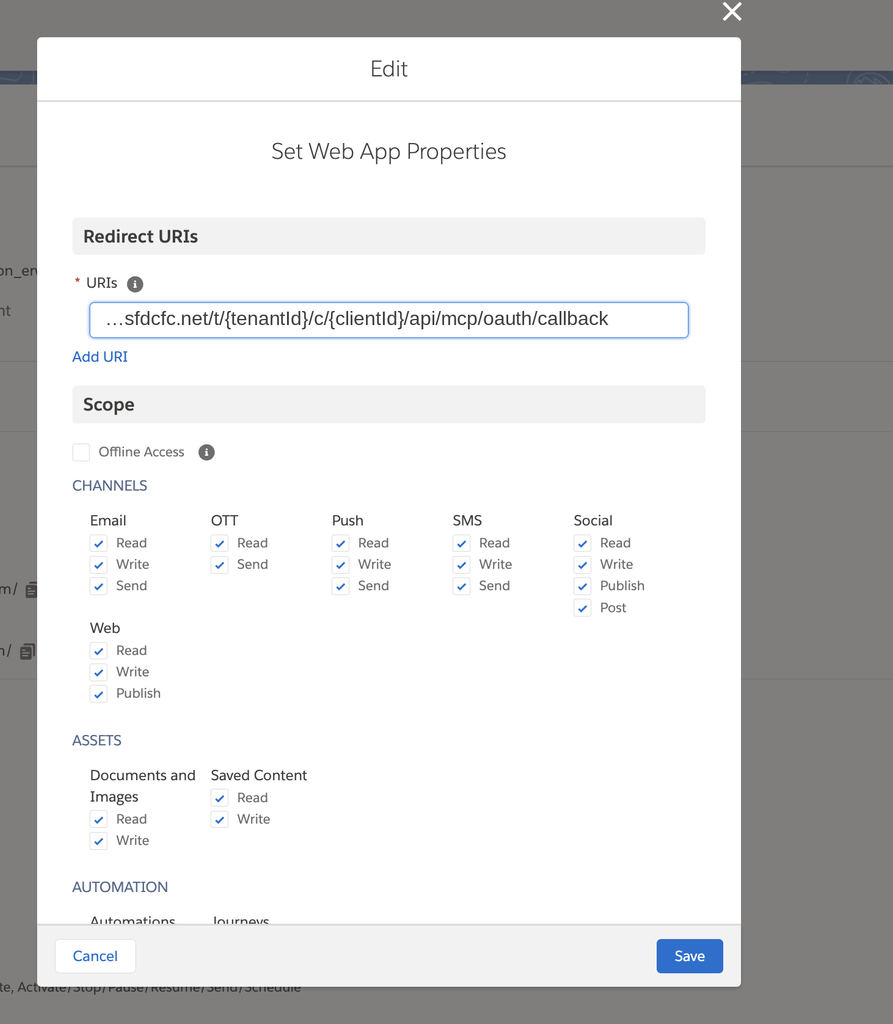
Step 4: replace the Redirect URI with the MCP server callback URL
Click Edit in the API Integration section and replace https://salesforce.com with the callback URL for the region closest to you. Replace {tenantId} and {clientId} with your own values.
Server hosted in the European Union:
https://mai-mce-mcp-cdp1.sfdc-yzvdd4.svc.sfdcfc.net/t/{tenantId}/c/{clientId}/api/mcp/oauth/callbackServer hosted in the United States:
https://mai-mce-mcp-cdp1.sfdc-yfeipo.svc.sfdcfc.net/t/{tenantId}/c/{clientId}/api/mcp/oauth/callbackThe region only affects latency. From Europe, pick the EU server.
Step 5: add the custom connector in Claude
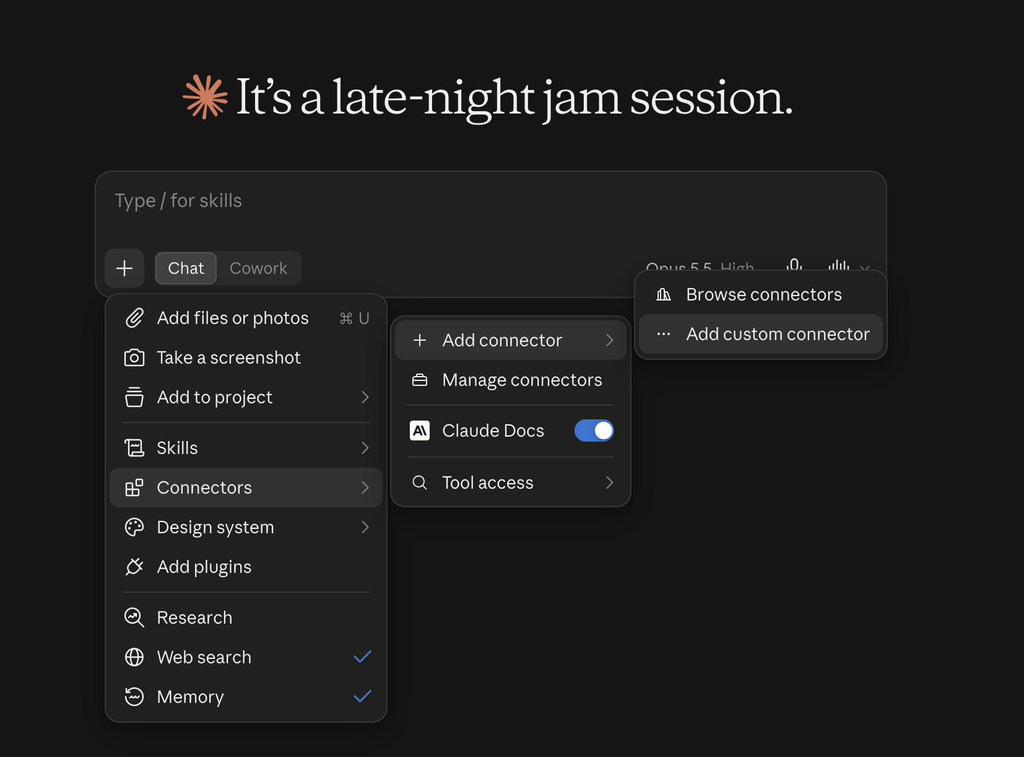
In Claude, click the + button in the message box, then Connectors > Add connector > Add custom connector.
Name the connector (for example MCP_MCE_MCDO_Erwan), then paste the MCP server URL. Careful, this is not the same URL as in step 4: it ends with /api/mcp, without /oauth/callback. It works with or without a trailing slash.
EU server:
https://mai-mce-mcp-cdp1.sfdc-yzvdd4.svc.sfdcfc.net/t/{tenantId}/c/{clientId}/api/mcpUS server:
https://mai-mce-mcp-cdp1.sfdc-yfeipo.svc.sfdcfc.net/t/{tenantId}/c/{clientId}/api/mcp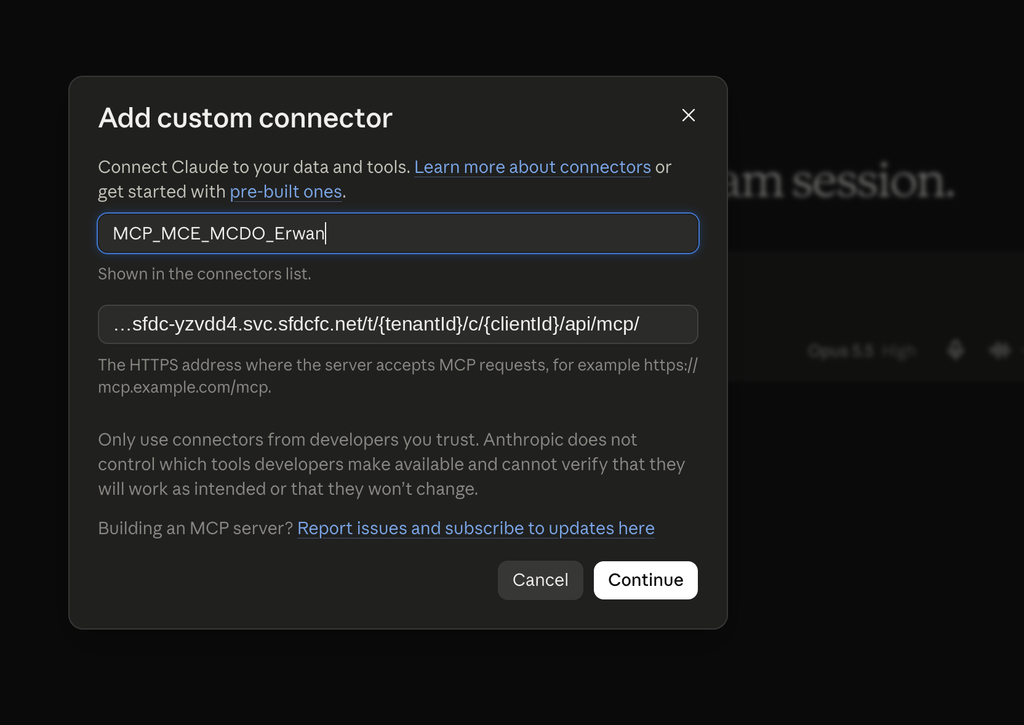
To keep the two URLs apart:
| URL | Where to enter it | URL ending |
|---|---|---|
| Callback URL | Installed Package Redirect URI (MCE) | /api/mcp/oauth/callback |
| MCP server URL | Custom connector (Claude) | /api/mcp |
Step 6: choose the authentication options
Click Continue. Claude then shows two sets of options.
- Authentication: Sign in now. The MCE MCP server requires sign-in for all its tools, so there’s no point signing in later.
- OAuth client: Use Claude’s published identity. This is the recommended option, selected by default, and the one I used. If the connection fails for you, delete the connector and start again with Register automatically.
Don’t choose Use your own OAuth client with your package’s Client Id. That Client Id links the MCP server to Marketing Cloud, not Claude to the MCP server. It’s already in the URL, and that’s where the server reads it.
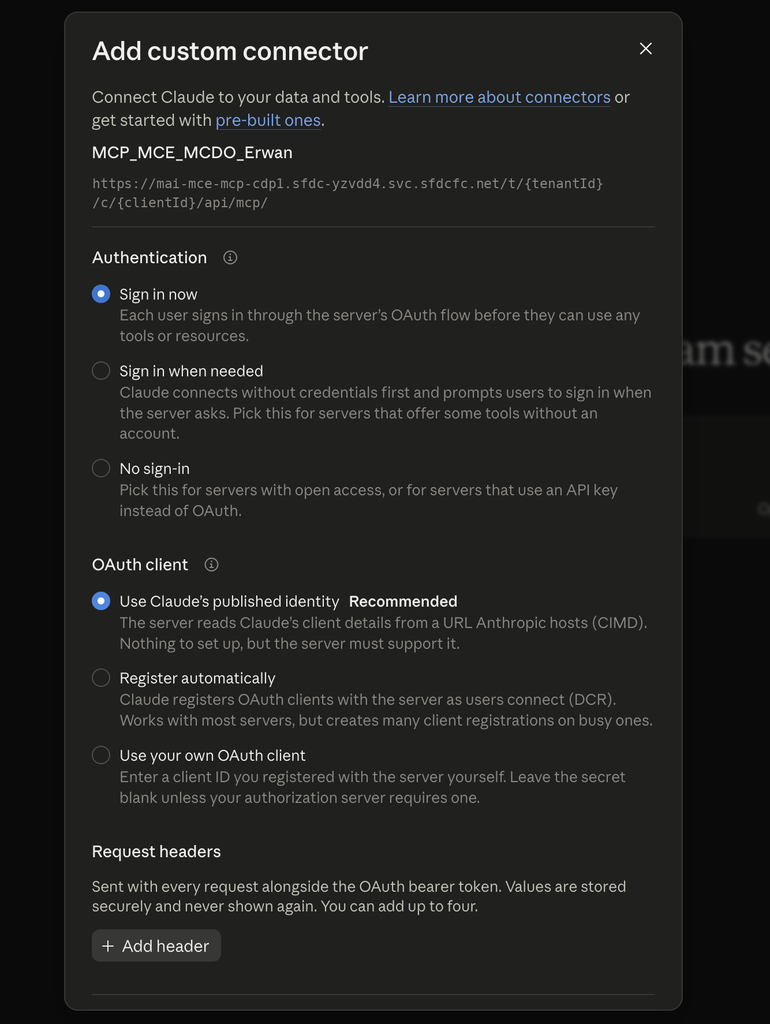
Claude then redirects you to the Marketing Cloud login page. Sign in with your MCE user and allow access: you’re automatically sent back to Claude.
Step 7: test the connection
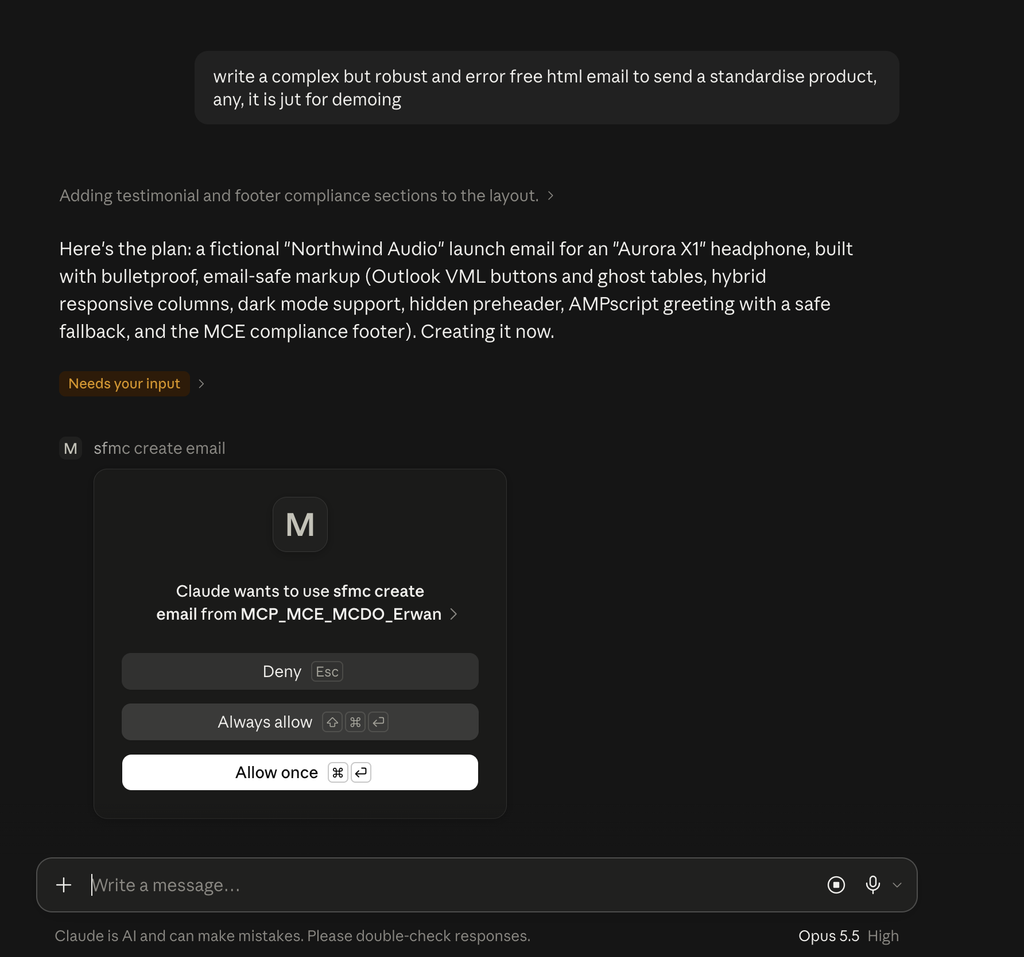
Open a new conversation and ask for something concrete. For my test, I simply wrote: “I want to use my connector to create an email in MCE”. Here’s how the exchange went:
- Claude loads the connector’s tools, then asks me two multiple-choice questions: the email type (it suggests a raw HTML email, Content Builder type 208) and whether to add open tracking.
- It then asks for the email name, subject line and HTML code, or offers to write the HTML itself from a description.
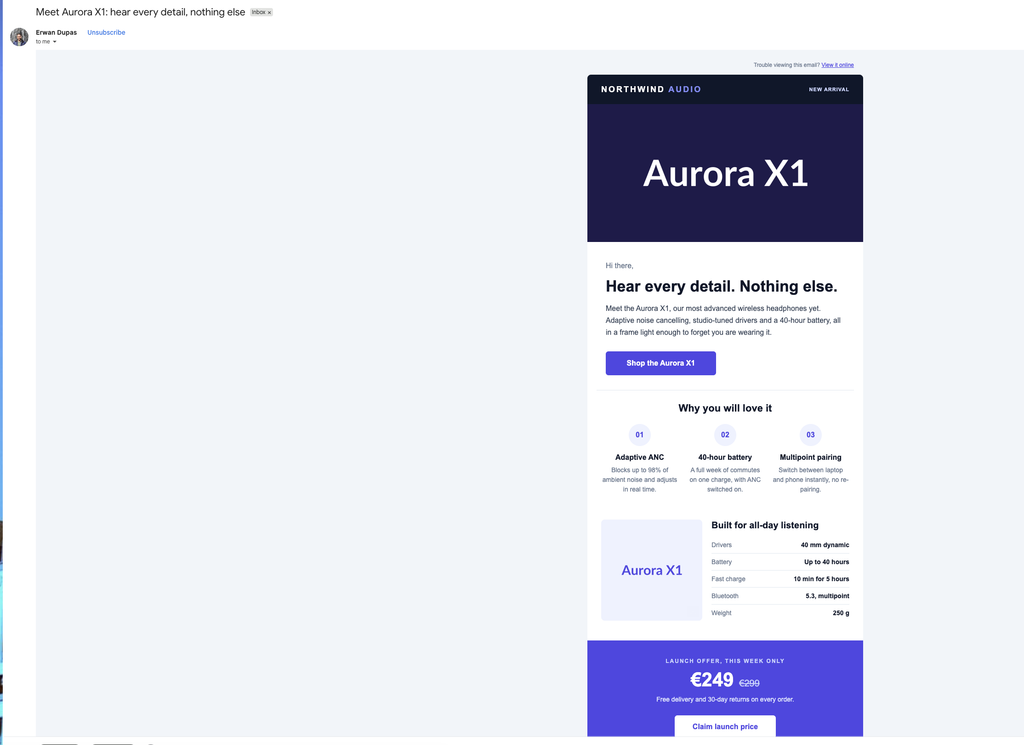
- I ask for a complex but robust demo email for a standard product. It comes up with the Aurora X1, a headphone from the fictional brand Northwind Audio, and writes the code.
- Before creating the email, it asks for permission to use the
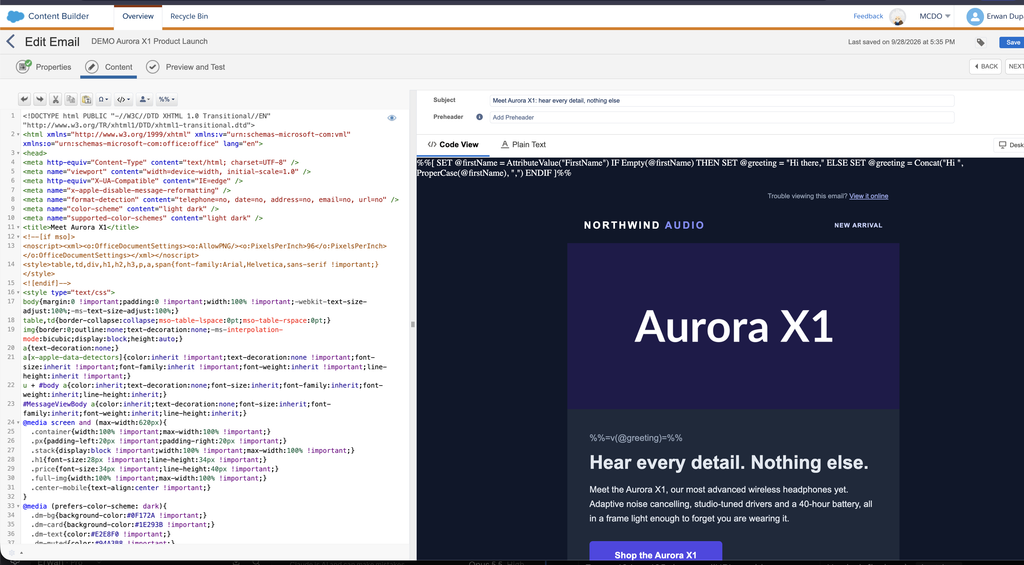
sfmc_create_emailtool. - Once the email is created, it gives me the Asset ID, customer key, type and subject line, and summarises what’s in the code: hidden preheader, Outlook-friendly buttons, responsive columns, dark mode support, an AMPscript greeting with a fallback and a footer compliant with commercial send rules.
The whole thing took a few minutes, without opening Content Builder once.
For every action, Claude shows a permission request. You can allow the action once (Allow once) or always (Always allow).
The email shows up right away in Content Builder, ready to be edited, tested or used in a journey.
And here’s how it looks in a Gmail inbox after a test send:
Using Claude Code rather than Claude on the web? You connect with a single command, followed by /mcp then Authenticate:
claude mcp add -s user --transport http mce-mcp https://mai-mce-mcp-cdp1.sfdc-yzvdd4.svc.sfdcfc.net/t/{tenantId}/c/{clientId}/api/mcpUsing the MCP well: my tips
The MCP server gives Claude tools, not a strategy. The quality of the result depends mostly on your requests and the context you provide. Here’s what I took away from my tests.
Ask for a plan before execution. For any task that changes data, first ask Claude what it intends to do, step by step, and approve before it acts. For sensitive operations (deletions, bulk updates), ask for a dry run or the code it plans to run.
Keep an eye on your API calls. Every action Claude takes is a call to the Marketing Cloud APIs, which counts against your annual limit. Creating a journey or an email only takes a few calls, but a bulk write to a Data Extension can use a huge number. A simple trick: in your request, ask it to estimate how many API calls it will need, then ask how many it actually used.
Give Claude context. Your naming conventions, the structure of your Data Extensions, the folders to use: the more Claude knows, the fewer mistakes it makes. The easiest way is to create a Claude Project dedicated to Marketing Cloud and write these rules in its instructions, for example “always create emails in the Tests folder” or “always suggest a plan before making a change”.
Work in small steps. A complex journey, with decisions and several branches, is easier to build over several successive requests than in one. If Claude gets the same thing wrong several times, start a new conversation with a more precise request: it’s often more effective than correcting it again.
Know when not to use it. The MCP isn’t always the best tool. To copy a journey as-is to another business unit, Package Manager does the job reliably and repeatably. The MCP is more useful when you need to understand, adapt or improve something.
Know the current limits. In my test, the email was created as raw HTML: you edit it in the code editor, not block by block in the Content Builder visual editor.
Common errors and fixes
| Symptom | Likely cause | Fix |
|---|---|---|
| Claude says the connector “is set up as not requiring sign-in, but the server asked for sign-in (status 405)” | The callback URL was entered in the Claude connector instead of the server URL | Delete the connector and recreate it with the URL ending in /api/mcp |
| redirect_uri error on the Marketing Cloud login page | The package Redirect URI is still https://salesforce.com, or contains a typo | Replace it with the exact callback URL (step 4) |
| Connection refused | Incomplete Tenant ID, often missing its -1 suffix | Copy the full subdomain of the Authentication Base URI |
| 401 error when a tool is called | You’re no longer authenticated with the MCP server | Check the connector settings, then sign in again |
| 403 error when a tool is called | The package lacks the required scope, or your MCE user lacks the matching permission | Add the scope to the package (or the permission to the user), then reconnect the connector |
| Claude asks you to sign in again often | Offline Access not ticked in the package | Tick Offline Access, then reconnect the connector |
After an error, remember to delete the old connector in Connectors > Manage connectors. Otherwise, it keeps showing its error message next to the new one.
Security best practices
Once connected, Claude acts in Marketing Cloud with the rights you’ve given it. A few habits limit the risks:
- Grant as few scopes as possible. In particular, avoid Send and Delete if you don’t need them.
- Keep “Allow once” for tools that write. Read tools (get, query, describe) can be set to Always allow. Tools that create, update, delete or send deserve approval every time. You can set this tool by tool in Connectors > Manage connectors.
- Test on a demo business unit first, before any use on a production account.
- Review what Claude produces. An AI assistant can make mistakes: check an email or a SQL query before using it.
- Don’t share your credentials. The package’s JWT Signing Secret isn’t used by the MCP server, but it should never appear in a conversation or a screenshot.
Think about the data too. Everything Claude reads in Marketing Cloud (Data Extension rows, contact attributes, statistics) goes through the AI assistant and falls under that AI provider’s terms, not Salesforce’s. Before using the MCP on real customer data, check the data retention policy of your AI plan and involve your legal and security teams, especially for data protection rules such as GDPR.
Note: Salesforce states that third-party AI assistants such as Claude are neither provided nor supported by Salesforce. You remain responsible for how the results are used in your account.
FAQ
Do I need to enable the MCP in my Marketing Cloud account?
No. The server is hosted by Salesforce, so it doesn’t appear anywhere in Setup and there’s nothing to enable and no ticket to open. You just create the Installed Package and connect to it from your AI assistant, as described above.
Is the Marketing Cloud Engagement MCP server paid?
No, Salesforce doesn’t charge for using the MCP server. There are two indirect costs, though: the AI assistant uses tokens, billed according to your plan with the AI provider, and every action goes through the Marketing Cloud APIs, whose annual call volume is limited according to your edition.
Does the MCP server store my data?
No. According to Salesforce, the server doesn’t store the data it accesses: it passes requests between Claude and the Marketing Cloud APIs.
Should I choose the EU or the US server?
Whichever is closest to you. The choice only affects latency. Just make sure you use the same region for the callback URL and the server URL.
What’s the difference with Claude Code?
The principle is the same. Claude Code is set up from the command line and is aimed more at developers. Claude on the web and desktop use a custom connector, with no commands at all.
Can I use this MCP server with ChatGPT, Copilot or Gemini?
In principle, yes. MCP is an open standard, and Salesforce states that the server works with most MCP-compatible agents, naming Claude, ChatGPT, Cursor and Gemini. You need a client that can connect to a remote MCP server with OAuth authentication:
- ChatGPT: through custom connectors in Developer Mode, available on paid plans. In a Business or Enterprise workspace, an admin usually has to enable it.
- Microsoft Copilot: through Copilot Studio, by adding a Model Context Protocol tool to an agent. GitHub Copilot, in VS Code for example, also supports MCP servers.
- Gemini: Gemini CLI is mentioned in the Salesforce documentation, following the same logic as Claude Code.
The Marketing Cloud side stays exactly the same. Only the connector setup screen changes, and the authentication options often have different names.
Conclusion
Connecting the Marketing Cloud Engagement MCP server to Claude comes down to two configurations: a Public App Installed Package in MCE, and a custom connector in Claude. The key is not to mix up the two URLs: the callback in MCE, the /api/mcp server URL in Claude.
Once connected, start with read-only requests, such as listing your Data Extensions or analysing a journey, before letting Claude create content.
Useful links
- MCP Server for Marketing Cloud Engagement overview (Salesforce Developers)
- Set Up the MCP Server (Salesforce Developers)
- Other considerations: costs, limits, error codes (Salesforce Developers)
- MCP server tool reference (Salesforce Developers)
- The MCP Server for Marketing Cloud Engagement is now GA (Salesforce Developers blog)
- API Integration Permission Scopes (Salesforce Developers)
- Get started with custom connectors using remote MCP (Claude Help Center)
Commentaires
Aucun commentaire pour l'instant. Une question, une astuce à partager ? Lancez la discussion.
Pour continuer
Marketing Cloud Tracking Extract: How to Export Your Data Nouveau
Engagement, Pour débuter
Marketing Cloud Data Views: SQL Guide with Examples Nouveau
Engagement, Pour aller plus loin
Marketing Cloud Reports: The Analytics Builder Guide Nouveau
Engagement, Pour débuter
Une question sur ce guide ?
contact@erwandupas.com