Marketing Cloud Data Views: SQL Guide with Examples
Email Studio Tracking and Analytics Builder standard reports answer the everyday questions. But sooner or later, someone will ask for a number no report provides: “subscribers who clicked three or more emails this quarter”, “the SMTP details of every hard bounce this week”, “the performance of each email in a journey, version by version”. That is where Data Views come in.
Data Views are system tables, maintained by Marketing Cloud Engagement, that record every send, open, click, bounce or unsubscribe, subscriber by subscriber. You do not see them in the interface: you query them with SQL from Automation Studio, and the result is stored in a data extension (Data Views). Their names always start with an underscore: _Sent, _Open, _Click, _Bounce, _Journey…
Why use them? Because they go down to subscriber and event level, where standard reports stop at aggregates. Because you can combine them with your own data (purchases, preferences, segments). And because the result, a data extension, can be used directly to target a send or feed a journey.
In this guide, you will see how to query them, which ones to use, how to link them together, and you will leave with SQL queries ready to copy.
How it works: a query, a data extension, an automation
Querying a Data View takes three things (SQL Queries for Marketing Cloud Engagement):
- A target data extension, created beforehand, with fields matching the columns your query will return (same name, compatible type, sufficient length).
- A SQL Query activity in Automation Studio, containing the
SELECTquery and pointing to that data extension. - A run: either one-off, with the Run Once button directly on the activity, without any automation; or regular, by placing the activity in a scheduled automation.
The result of each run is written to the target data extension, and the activity log keeps track of every run (Build a SQL Query Activity).
Three ways to write the result
| Mode | What it does | When to use it |
|---|---|---|
| Overwrite | Empties the data extension, then fills it with the new result | The default choice for a report: each run gives an up-to-date snapshot. It is also the best-performing mode in most cases |
| Append | Adds rows at the end, without touching existing rows | To build a history or an event log, for example keeping clicks beyond six months |
| Update | Updates rows matching the primary key and adds new ones | To maintain a table per subscriber, for example the date of the last click |
The performance recommendations come from the Salesforce documentation (Optimizing a SQL Query Activity).
Test your queries with Query Studio
Before automating a query, you need to test it. Creating a data extension and an activity, running it, then checking the result takes a long time for a simple test. That is where Query Studio for Marketing Cloud comes in, a free Salesforce Labs app available on AppExchange (Query Studio for Marketing Cloud). You write the query, click Run, and the result appears right below the editor, with the run time.
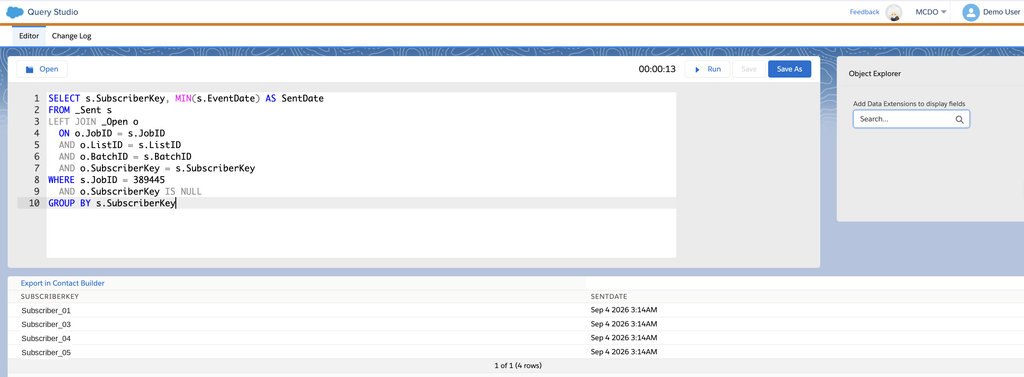
[IMAGE] File: query-studio-requete-non-ouvreurs.png · ALT: “SQL query on the _Sent and _Open Data Views run in Query Studio, with the result shown below the editor”
What to know before using it:
- Installation: from the AppExchange menu in Marketing Cloud. After installing, log out and log back in to see the app (sfmarketing.cloud).
- What it creates behind the scenes: each run generates a temporary data extension in a QueryStudioResults folder, automatically deleted after 24 hours, and each user gets a SQL Query activity named “interactivequery” in Automation Studio (sfmarketing.cloud). Do not be surprised to see them.
- Keeping the result: the Export in Contact Builder link above the results lets you keep the data.
- Support: it is a Salesforce Labs app, not covered by Salesforce Support: questions are redirected to the Trailblazer Community (Support for Query Studio for Marketing Cloud).
All the queries in this article were tested in Query Studio on a demo account: you will find a screenshot of the result under each of them.
The Data Views to know
Salesforce documents many Data Views, for email, SMS, push, journeys and even automations (Data Views). For email reporting, about ten are enough.
Send and engagement events
| Data View | What it contains | Most useful columns |
|---|---|---|
_Sent | One row per email sent to a subscriber | JobID, ListID, BatchID, SubscriberKey, EventDate, Domain |
_Open | One row per open | JobID, SubscriberKey, EventDate, IsUnique |
_Click | One row per click | JobID, SubscriberKey, EventDate, URL, LinkName, IsUnique |
_Bounce | One row per bounce | JobID, SubscriberKey, EventDate, BounceCategory, BounceSubcategory, SMTPCode, SMTPBounceReason |
_Unsubscribe | Unsubscribes linked to a send | JobID, SubscriberKey, EventDate |
_Complaint | Spam complaints | JobID, SubscriberKey, EventDate, Domain, IsUnique |
Context: sends, subscribers, journeys
| Data View | What it contains | Most useful columns |
|---|---|---|
_Job | One row per send (job) | JobID, EmailName, EmailSubject, FromName, SchedTime, DeliveredTime |
_Subscribers | Subscribers and their status | SubscriberKey, EmailAddress, Status, DateUnsubscribed, DateHeld |
_Journey | Journeys and their versions | VersionID, JourneyName, VersionNumber, JourneyStatus |
_JourneyActivity | The activities of each journey version | VersionID, ActivityName, ActivityType, JourneyActivityObjectID |
_BusinessUnitUnsubscribes | Unsubscribes by business unit, at Enterprise level | SubscriberKey, BusinessUnitID, UnsubDateUTC |
Two newer Data Views are also worth a look if you administer the account: _AutomationInstance and _AutomationActivityInstance, which help spot automations and activities that often fail or run too long (Data Views).
Linking Data Views together: join keys
A single Data View rarely answers the question. The real power comes from joins: linking a click to the send that triggered it, to the email involved, then to the journey that sent it.
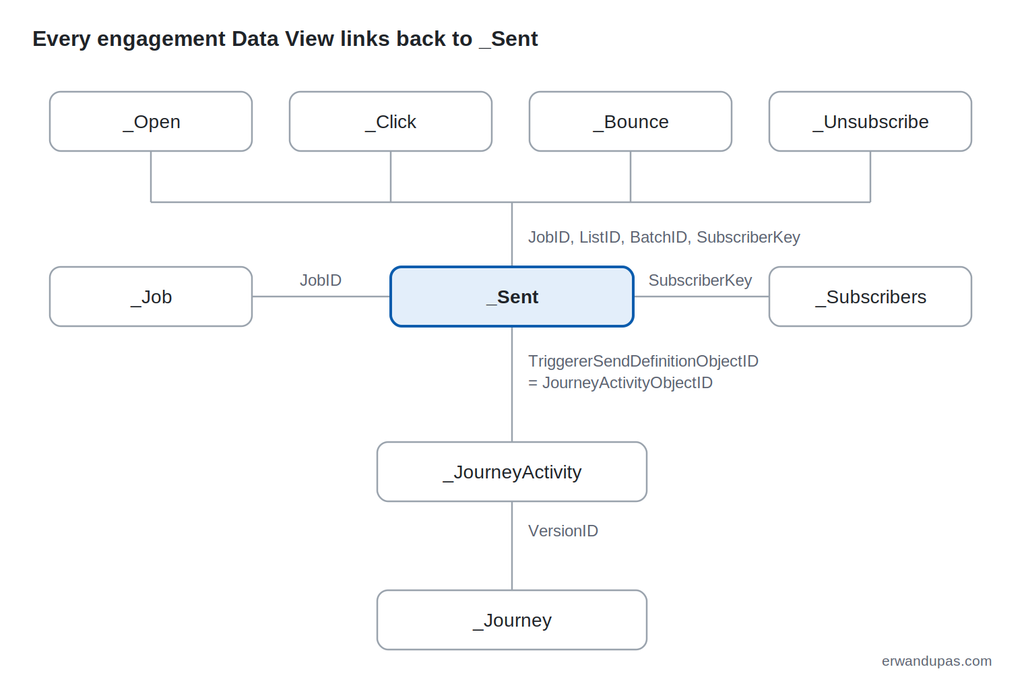
Three rules cover most cases:
- To link an event to a specific send, join on JobID, ListID, BatchID and SubscriberKey. JobID alone is not enough: one job can contain several batches, especially for triggered sends.
- To get the email name or subject, join
_Jobon JobID. - To attach an email to its journey, the TriggererSendDefinitionObjectID field in the
_Sent,_Open,_Clickand_BounceData Views corresponds to the JourneyActivityObjectID field in_JourneyActivity(Data View: Journey Activity). You then go up to_Journeythrough VersionID, which gives the journey name and version.
Six ready-to-use SQL queries
Each query below lists the target data extension to create. Replace the example values (JobID, number of days) with your own. Make text fields long enough: an SMTPBounceReason or a URL quickly exceeds 255 characters.
1. Subscribers who did not open a send
For a follow-up to non-openers. The left join keeps every send, and only those without an open are kept.
SELECT s.SubscriberKey, MIN(s.EventDate) AS SentDate
FROM _Sent s
LEFT JOIN _Open o
  ON o.JobID = s.JobID
  AND o.ListID = s.ListID
  AND o.BatchID = s.BatchID
  AND o.SubscriberKey = s.SubscriberKey
WHERE s.JobID = 123456
  AND o.SubscriberKey IS NULL
GROUP BY s.SubscriberKey
Target data extension: SubscriberKey (text, primary key), SentDate (date). Mode: Overwrite.
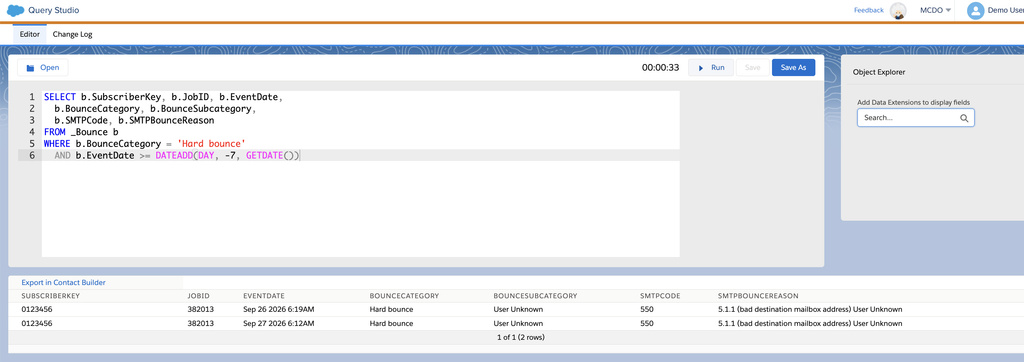
2. Clicks from the last 30 days, with the email name and the link
SELECT c.SubscriberKey, j.EmailName, c.URL, c.EventDate AS ClickDate
FROM _Click c
INNER JOIN _Job j ON j.JobID = c.JobID
WHERE c.IsUnique = 1
  AND c.EventDate >= DATEADD(DAY, -30, GETDATE())
Target data extension: SubscriberKey, EmailName, URL (long text), ClickDate, no primary key (a subscriber can click several emails). Mode: Overwrite.
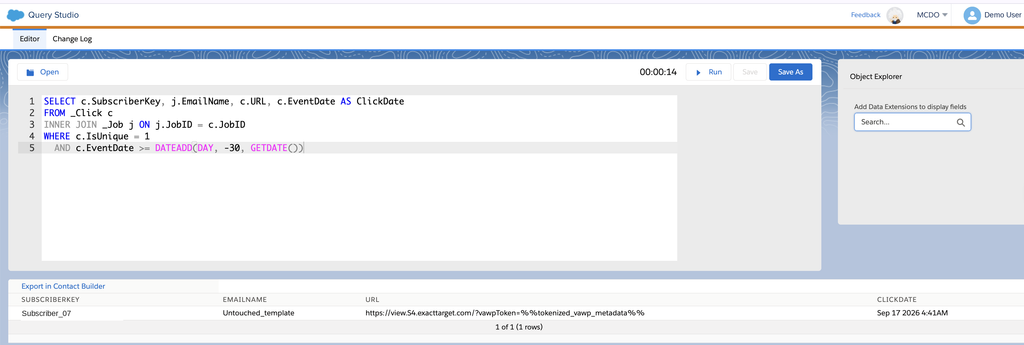
3. Hard bounce details from the last week
The query to run when Tracking or reports are no longer enough to understand a deliverability issue: it returns the SMTP code and the exact message from the receiving server.
SELECT b.SubscriberKey, b.JobID, b.EventDate,
  b.BounceCategory, b.BounceSubcategory,
  b.SMTPCode, b.SMTPBounceReason
FROM _Bounce b
WHERE b.BounceCategory = 'Hard bounce'
  AND b.EventDate >= DATEADD(DAY, -7, GETDATE())
Target data extension: the seven fields, with SMTPBounceReason as long text (4,000 characters). Mode: Overwrite. For other types, replace the category with ‘Soft bounce’, ‘Block bounce’ or ‘Technical/Other bounce’.
4. Journey email performance, version by version
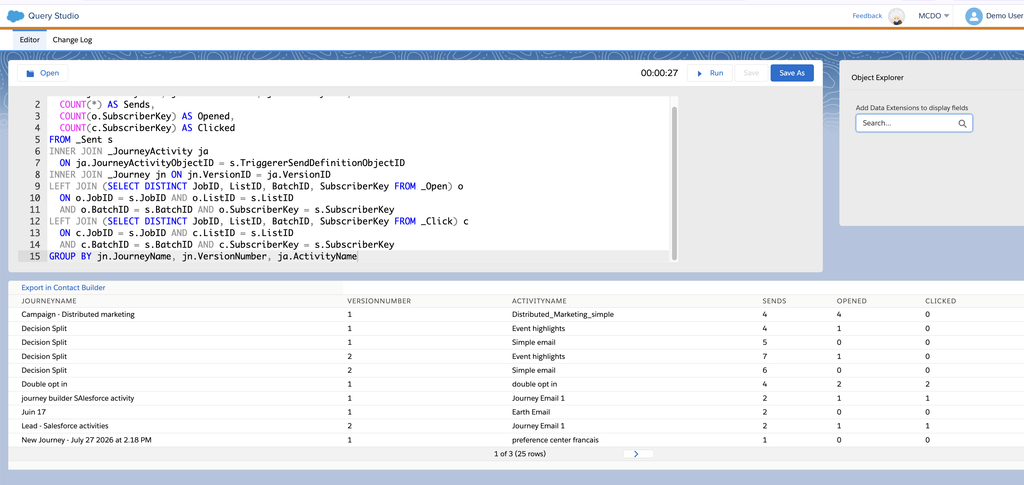
The query customers like most: a table per journey, version and email, with sends, opens and clicks.
SELECT jn.JourneyName, jn.VersionNumber, ja.ActivityName,
  COUNT(*) AS Sends,
  COUNT(o.SubscriberKey) AS Opened,
  COUNT(c.SubscriberKey) AS Clicked
FROM _Sent s
INNER JOIN _JourneyActivity ja
  ON ja.JourneyActivityObjectID = s.TriggererSendDefinitionObjectID
INNER JOIN _Journey jn ON jn.VersionID = ja.VersionID
LEFT JOIN (SELECT DISTINCT JobID, ListID, BatchID, SubscriberKey FROM _Open) o
  ON o.JobID = s.JobID AND o.ListID = s.ListID
  AND o.BatchID = s.BatchID AND o.SubscriberKey = s.SubscriberKey
LEFT JOIN (SELECT DISTINCT JobID, ListID, BatchID, SubscriberKey FROM _Click) c
  ON c.JobID = s.JobID AND c.ListID = s.ListID
  AND c.BatchID = s.BatchID AND c.SubscriberKey = s.SubscriberKey
GROUP BY jn.JourneyName, jn.VersionNumber, ja.ActivityName
Target data extension: JourneyName, VersionNumber (number), ActivityName, Sends, Opened, Clicked (numbers). Mode: Overwrite. The SELECT DISTINCT subqueries avoid counting twice a subscriber who opened or clicked several times.
5. This week’s unsubscribes, with the email that caused them
SELECT u.SubscriberKey, sub.EmailAddress,
  u.EventDate AS UnsubscribeDate, j.EmailName
FROM _Unsubscribe u
INNER JOIN _Subscribers sub ON sub.SubscriberKey = u.SubscriberKey
LEFT JOIN _Job j ON j.JobID = u.JobID
WHERE u.EventDate >= DATEADD(DAY, -7, GETDATE())
Target data extension: SubscriberKey, EmailAddress, UnsubscribeDate, EmailName, no primary key. Mode: Overwrite.
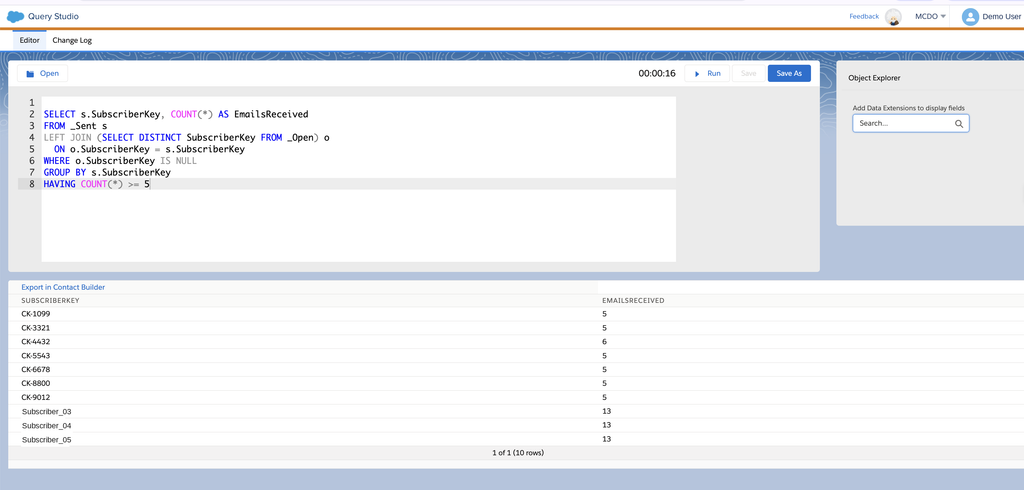
6. Inactive subscribers: at least five emails received, no opens
The basis of a reactivation campaign, over the six available months.
SELECT s.SubscriberKey, COUNT(*) AS EmailsReceived
FROM _Sent s
LEFT JOIN (SELECT DISTINCT SubscriberKey FROM _Open) o
  ON o.SubscriberKey = s.SubscriberKey
WHERE o.SubscriberKey IS NULL
GROUP BY s.SubscriberKey
HAVING COUNT(*) >= 5
Target data extension: SubscriberKey (primary key), EmailsReceived (number). Mode: Overwrite. On a large account, this query scans six months of sends: if it exceeds the maximum run time, split it (see the pitfalls below).
Setting up the automation step by step
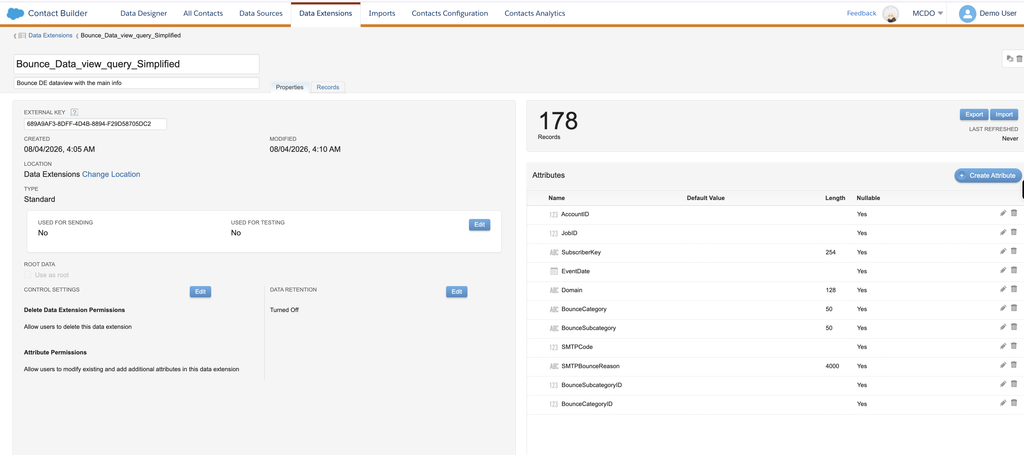
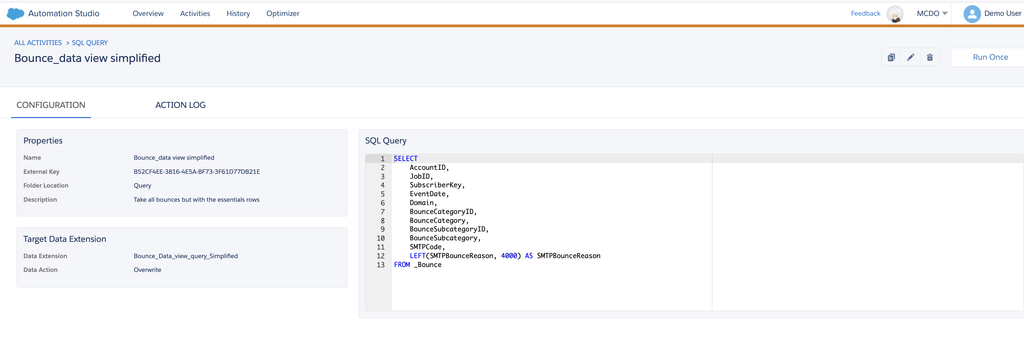
Let’s take a real example: a simplified copy of the _Bounce Data View, with only the useful columns, in a data extension you can then browse, filter and export.
Step 1: create the target data extension
In Contact Builder (or Email Studio > Subscribers > Data Extensions), create a standard data extension, not used for sending (Used for Sending: No). Here are the fields in our example:
| Field | Type | Length | What it contains |
|---|---|---|---|
| AccountID | Number | The business unit ID (MID) | |
| JobID | Number | The send involved | |
| SubscriberKey | Text | 254 | The subscriber |
| EventDate | Date | The bounce date, in CST | |
| Domain | Text | 128 | The email address domain |
| BounceCategoryID | Number | The category code | |
| BounceCategory | Text | 50 | Hard bounce, Soft bounce, Block bounce… |
| BounceSubcategoryID | Number | The subcategory code | |
| BounceSubcategory | Text | 50 | User Unknown, Domain Unknown, Blocked… |
| SMTPCode | Number | The SMTP code, for example 550 | |
| SMTPBounceReason | Text | 4000 | The full message from the receiving server |
All fields are nullable and there is no primary key: the same subscriber can have several bounces.
Step 2: create the SQL Query activity
In Automation Studio, Activities tab, click Create Activity and choose SQL Query (Build a SQL Query Activity).
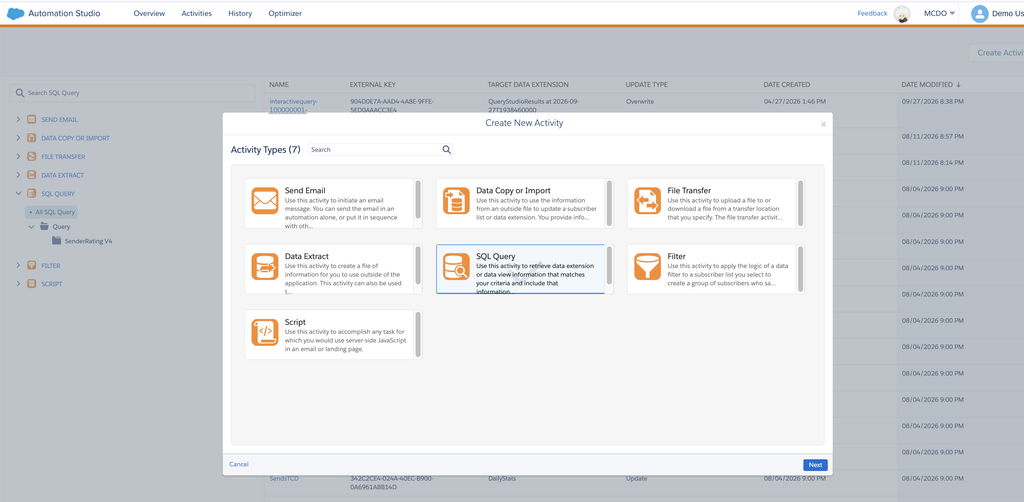
The wizard has four steps.
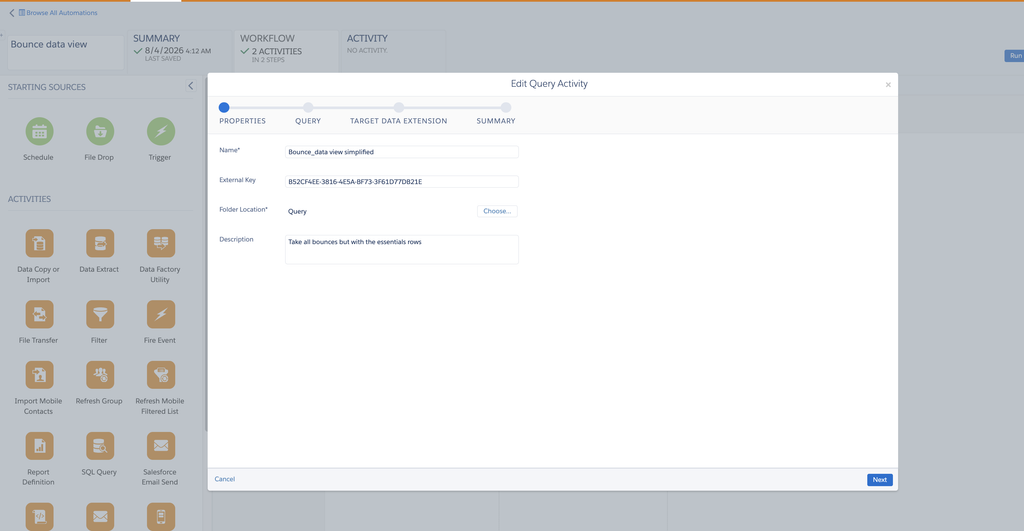
Properties: the name, the external key (generated automatically if left empty), the folder and a description.
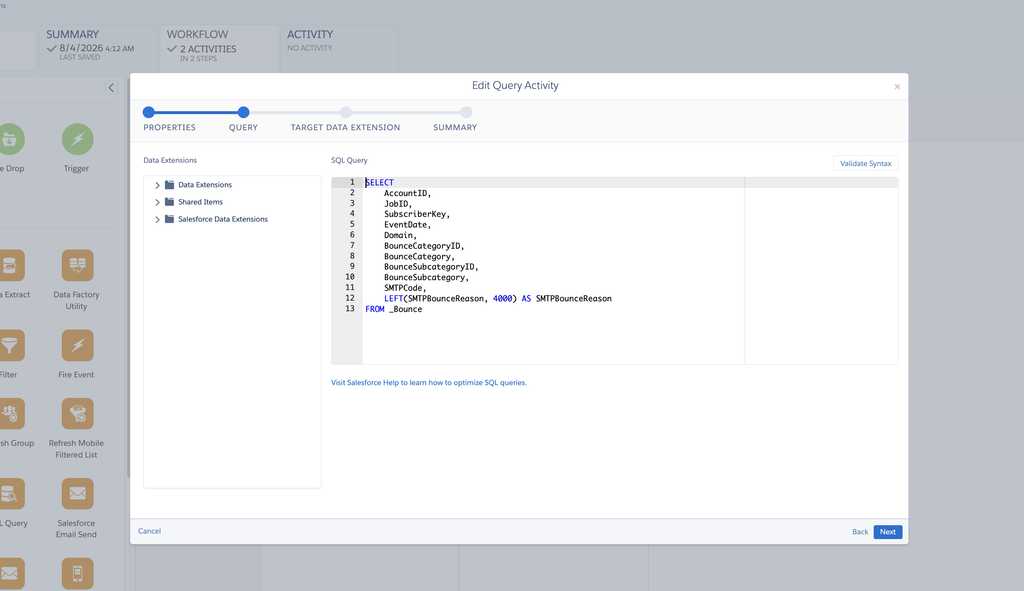
Query: paste the query, then click Validate Syntax.
SELECT
    AccountID,
    JobID,
    SubscriberKey,
    EventDate,
    Domain,
    BounceCategoryID,
    BounceCategory,
    BounceSubcategoryID,
    BounceSubcategory,
    SMTPCode,
    LEFT(SMTPBounceReason, 4000) AS SMTPBounceReason
FROM _Bounce
The LEFT(SMTPBounceReason, 4000) function cuts the message to the length of the target field: a value longer than the field would make the query fail.
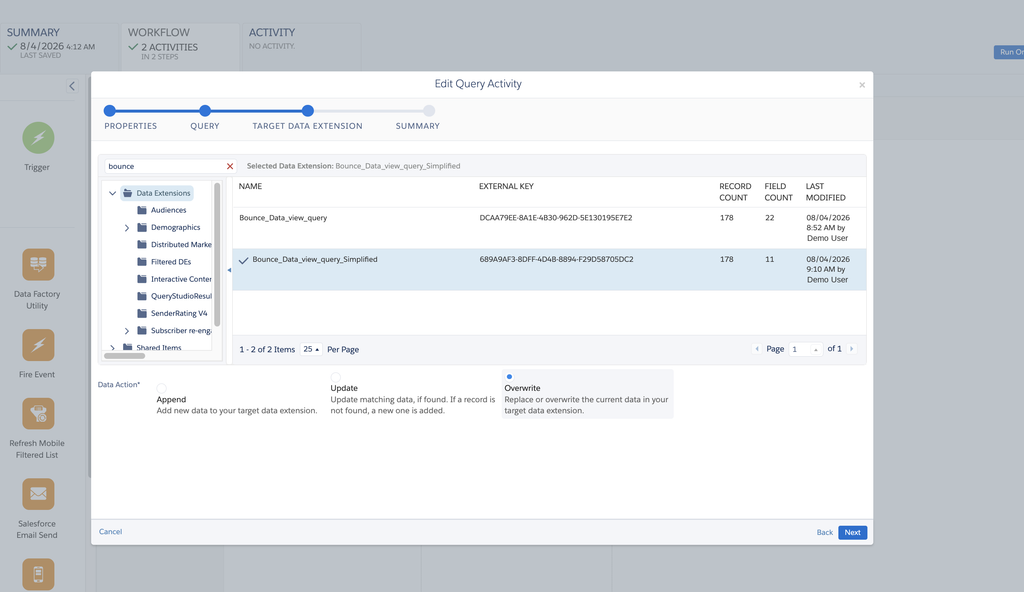
Target Data Extension: choose the data extension created in step 1 and the data action. Here, Overwrite: each run replaces the content with the last six months of bounces.
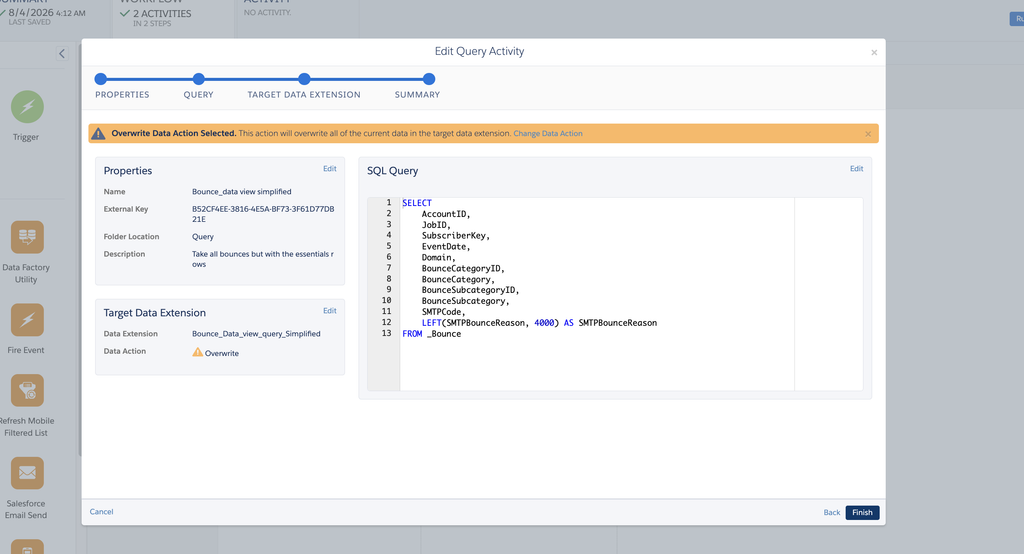
Summary: check everything. With Overwrite, a banner reminds you that all existing data will be replaced. Click Finish.
Step 3: run the query, with or without an automation
You do not need an automation to run a SQL Query activity: from its page in Activities, the Run Once button runs it immediately, and the Action Log tab shows the result of each run (Build a SQL Query Activity).
For a regular refresh, place the activity in an automation. Choose the starting source (Schedule for a timetable, File Drop when a file arrives), drag the SQL Query activity into a step, then add a Data Extract activity and a File Transfer activity if you want to export the result to your SFTP. Prefer an off-peak time, such as 7:30 rather than 7:00 sharp: most automations are scheduled on the hour (Optimizing a SQL Query Activity).
Step 4: check the result
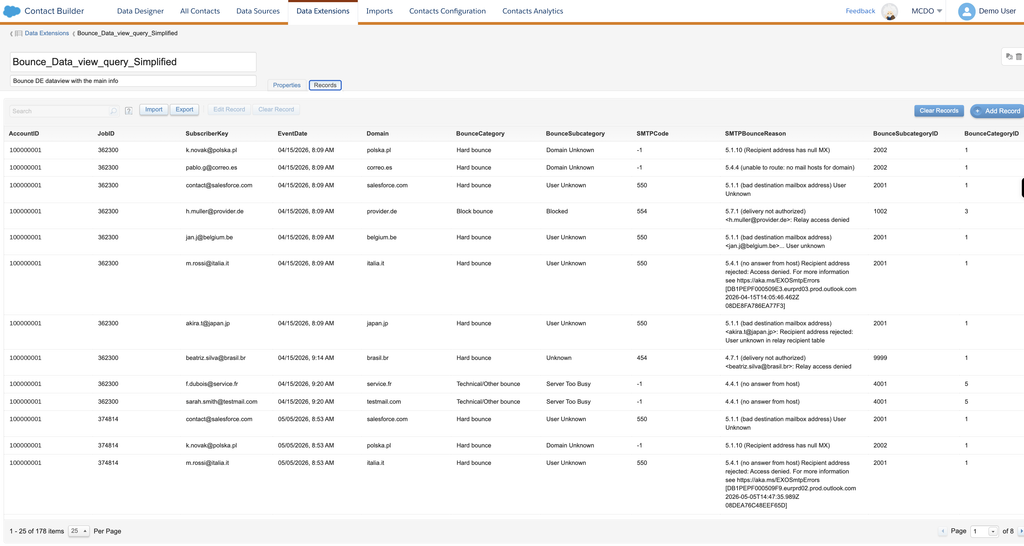
Open the data extension, Records tab. Each bounce appears with its category, subcategory, SMTP code and the exact server message: enough to see at a glance whether you are dealing with non-existent addresses, invalid domains or a block.
Pitfalls to know
Six months of history, not two years
Most engagement Data Views only keep six months of data (Data Views). The 730-day retention policy that applies to Tracking and reports changes nothing here. If you need a longer history, build it yourself: a query in Append mode that copies the previous day’s events into your own data extension every day.
Dates are in Central Standard Time, without daylight saving
Data View dates are stored in Central Standard Time (UTC-6), with no daylight saving time (Data Views). For a reader in the UK or Ireland, add six hours in winter and seven in summer; in continental Europe, seven and eight. A late-evening click in Europe therefore shows up on the previous day: watch out for daily reports.
At Enterprise level, the events are not there
Data Views queried from the Enterprise account do not include sends, opens, clicks, unsubscribes or bounces: you have to run the query in the business unit that sent the email (Data Views). Conversely, _BusinessUnitUnsubscribes only works on the parent account. And _JourneyActivity only contains activities created in the business unit where you run the query (Mateusz Dąbrowski).
A query stops after 30 minutes
Every SQL Query activity is stopped after 30 minutes, and Salesforce advises switching tools if a query regularly runs longer than 10 minutes (Optimizing a SQL Query Activity). To stay under the limit:
- select only the columns you need, never
SELECT *; - filter on a short period with EventDate;
- split a large multi-join query into small queries writing to intermediate tables;
- one query per automation step, and schedules away from the top of the hour.
The numbers do not exactly match Tracking
Data Views record every raw event: automatic opens from Apple Mail Privacy Protection, clicks from security bots, opens and clicks on a forwarded email attributed to the original subscriber. Use the IsUnique field or SELECT DISTINCT to count people rather than events, and keep in mind that Do Not Track subscribers have no recorded opens or clicks.
Which tool should you use next?
| Your need | The right tool |
|---|---|
| Quickly see the results of a send | Email Studio Tracking |
| A ready-made report, scheduled by email | Analytics Builder standard reports |
| Send raw data to a data warehouse, beyond six months | Tracking Extract [to link] (Tracking Extract) |
| Visual dashboards over two years, without SQL | Intelligence Reports for Engagement [to link] |
| Processing too heavy for a 30-minute query | Data 360 (formerly Data Cloud), which Salesforce recommends for large transformations |
FAQ: Marketing Cloud Engagement Data Views
What is a Data View in Marketing Cloud?
A system table managed by Marketing Cloud Engagement that records sends, opens, clicks, bounces, unsubscribes and journeys. You query it with SQL from an Automation Studio SQL Query activity, and the result is written to a data extension.
How long do Data Views keep data?
Six months for most engagement Data Views such as _Sent, _Open, _Click or _Bounce. To keep a longer history, regularly copy the data into your own data extension in Append mode, or export it with a Tracking Extract.
Why does my query on _Sent return nothing from the parent account?
Because engagement Data Views queried at Enterprise level do not contain sends, opens, clicks, unsubscribes or bounces. Run the query in the business unit that sent the emails.
How do I link an email to its journey in SQL?
Join the TriggererSendDefinitionObjectID field of _Sent (or _Open, _Click, _Bounce) to the JourneyActivityObjectID field of _JourneyActivity, then _JourneyActivity to _Journey on VersionID.
What time zone are Data View dates in?
Central Standard Time (UTC-6), without daylight saving time.
Why does my SQL query fail after 30 minutes?
That is the maximum run time of a SQL Query activity. Shorten the period analyzed, select only the columns you need, or split the query into several steps.
Sources: Salesforce documentation
All the information in this article was checked against the Salesforce documentation in September 2026. The queries are examples to adapt and test on your account.
Commentaires
Aucun commentaire pour l'instant. Une question, une astuce à partager ? Lancez la discussion.
Pour continuer
Connect the Marketing Cloud Engagement MCP Server to Claude: a Step-by-Step Guide Nouveau
Engagement, Pour débuter
Une question sur ce guide ?
contact@erwandupas.com